TABLE OF CONTENTS
- Answering Calls from the Call Winlet
- Accessing the Conversation History
- Use Cases
- Benefits
- Best Practices
- Tips
- Support
Answering Calls from the Call Winlet
- When an inbound call is received, the all winlet will pop up on your screen.
- Click the Answer button to accept the call or the End Call button to reject it.
The call winlet includes the following details:
- Caller Name
- Caller Location
- Practice Name
- Call Type
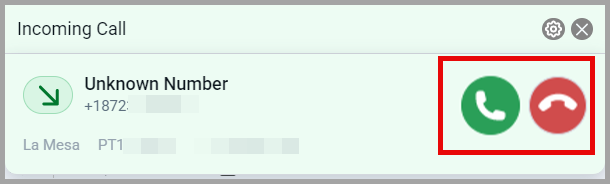
| Note: When the VoiceStack Agent App is idle or running in the background, an incoming call notification will appear. If the caller is registered in the app, the caller’s name will be displayed; otherwise, it will appear as Unknown Number. |
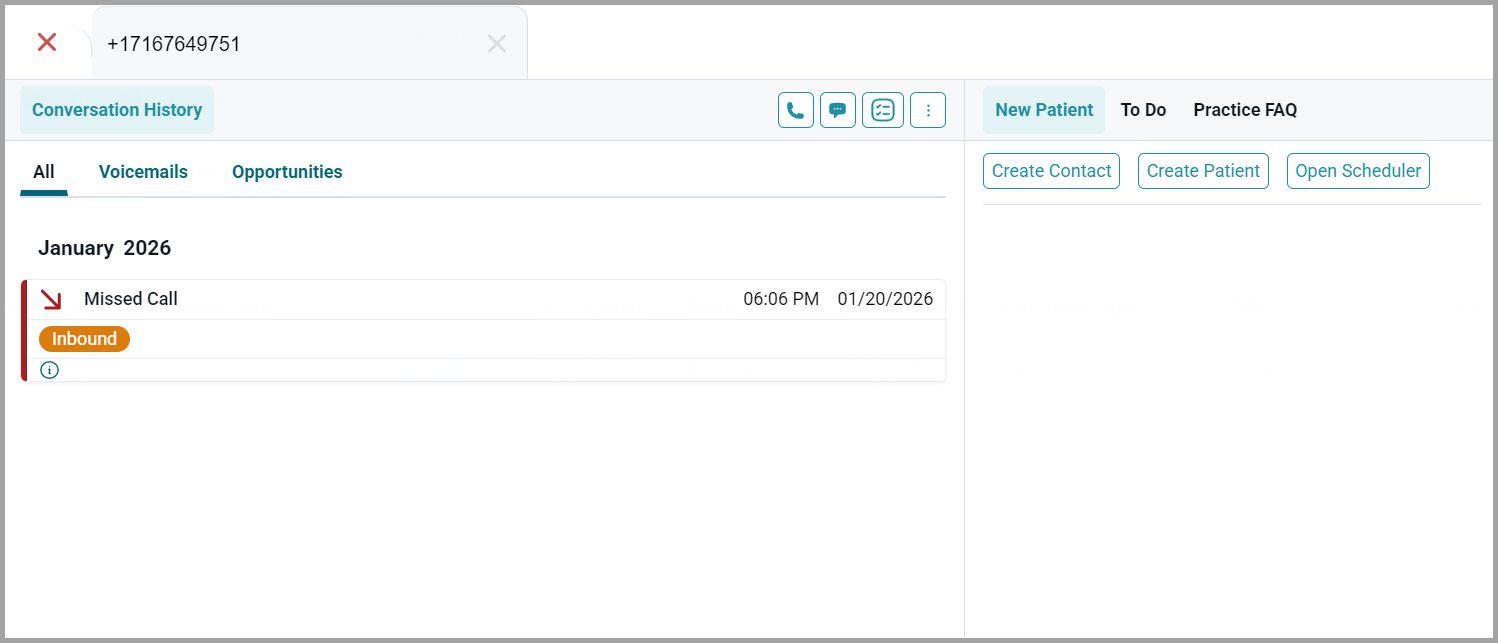
To open the Patient 360 screen during a call, click the Maximize option in the call window. This will take you to the Patient 360 screen.
Accessing the Conversation History
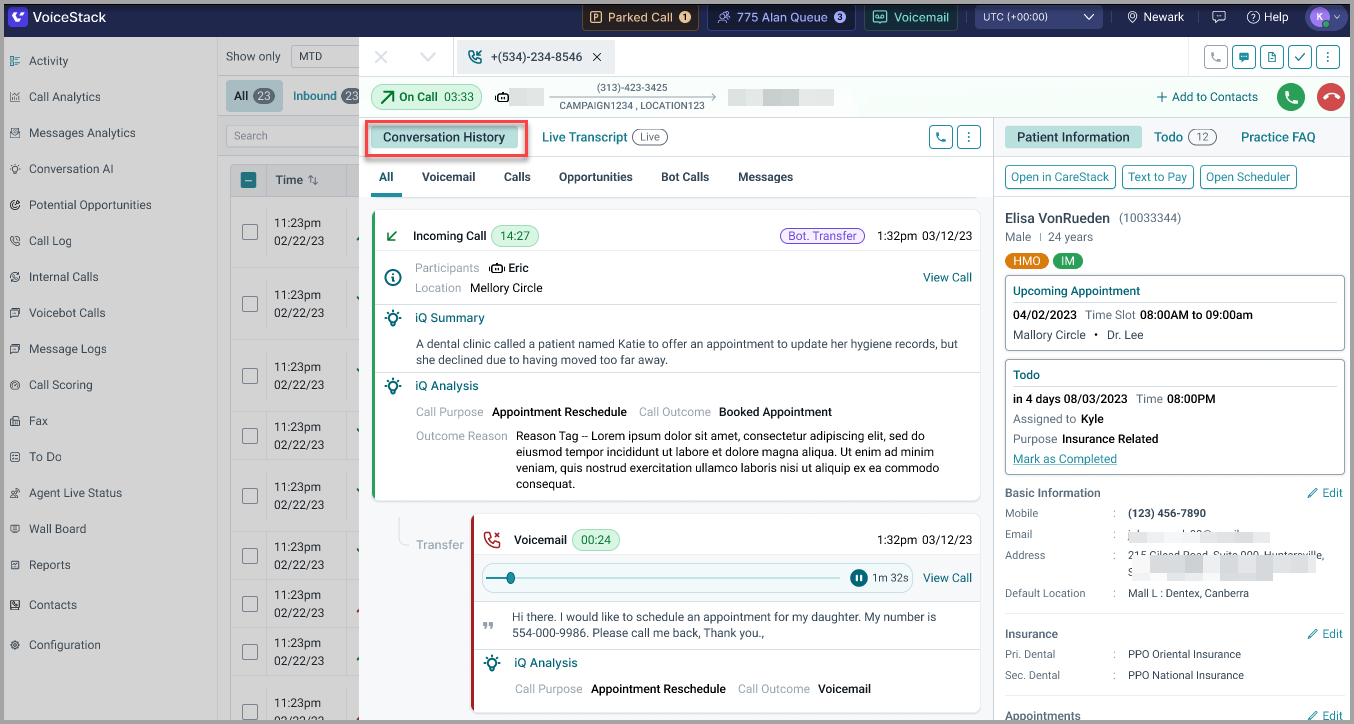
To open the Conversation History, select Conversation History from the Patient 360 slide-out panel.
While the call is in progress, you can open the Conversation History panel to view all previous interactions with the patient. Each conversation includes an IQ Summary and IQ Analysis, helping you quickly understand the context and key details of past calls at a glance.
Use Cases
Scenario | Activity |
| New Patient Calls | Shows complete details or marks the caller as unknown, helping agents collect necessary information. |
| Returning Caller | Automatically pulls up history so agents can continue the conversation seamlessly. |
| Missed Appointment | AI notes and conversation history give agents context for rebooking or patient follow-up. |
| Internal Calls | Displays colleague name, department, and extension clearly. |
Benefits
- Faster Call Handling – Instantly view caller context and respond with confidence.
- Improved Accuracy – Reduces miscommunication through access to call history and notes.
- Higher Productivity – Minimize context switching with embedded call tools.
- Smart Engagement – Patient 360 enables personalized conversations based on insights.
Best Practices
- Always check the caller details in the call winlet before answering.
- Open Patient 360 to review history before engaging in conversation.
- Greet known callers by name to enhance rapport and experience.
- Use call controls (mute, transfer, hold, etc.) effectively during the call.
- Log outcomes or notes immediately after the call in the Patient 360 panel.
Tips
- Enable sound notifications to never miss an inbound call.
- If on another screen, click the winlet directly to avoid losing context.
- Use filters in Patient 360 to quickly scan prior interactions.
- If unsure about the caller, verify the information before proceeding to sensitive topics.
- After handling, mark the call status or outcome for reporting and follow-up.
Support
Need further help? Reach out to us at support@voicestack.com or call 407-833-6436.
Was this article helpful?
That’s Great!
Thank you for your feedback
Sorry! We couldn't be helpful
Thank you for your feedback
Feedback sent
We appreciate your effort and will try to fix the article