Below is an overview of the VoiceStack Agent App.
Dialpad
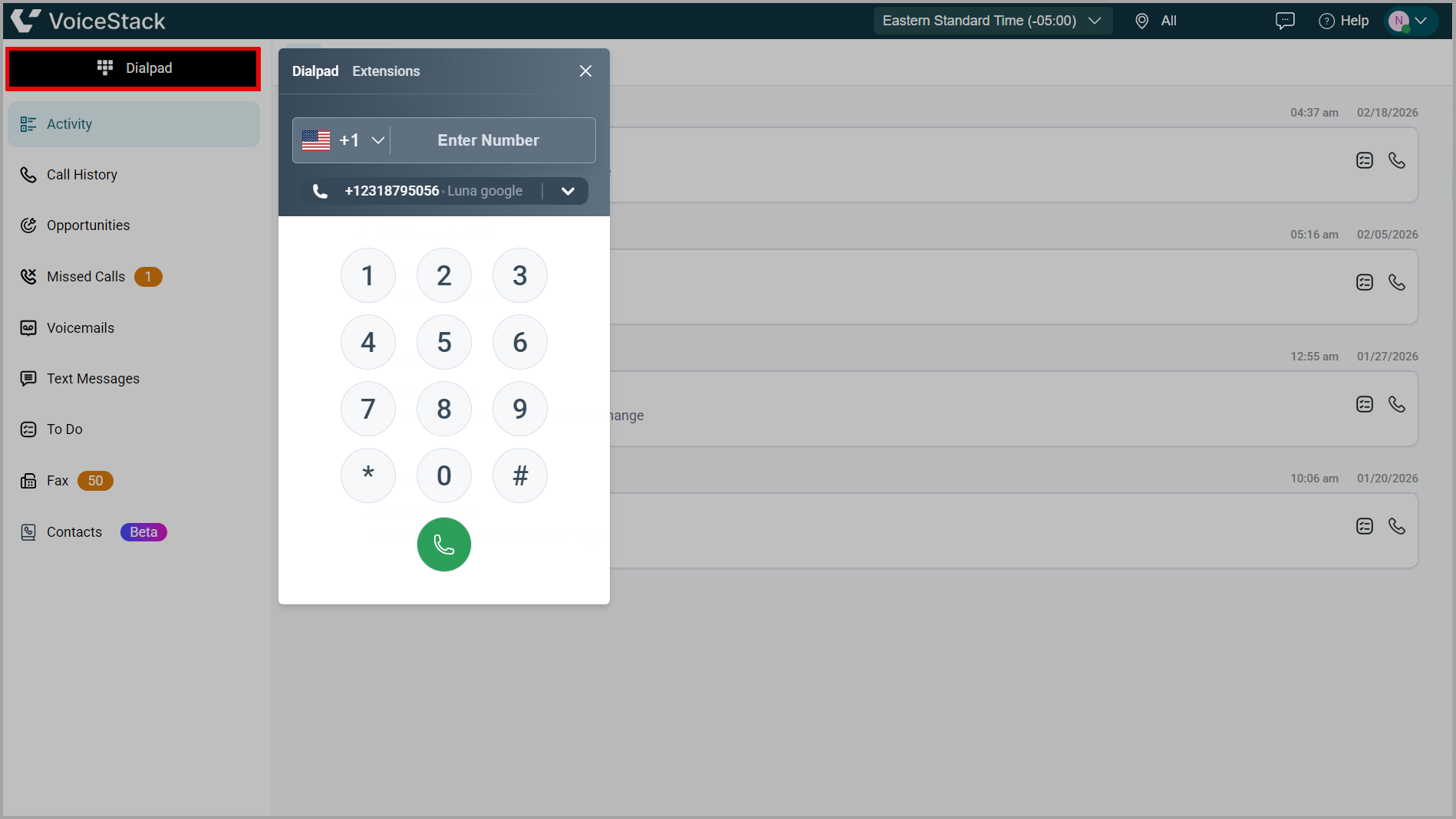
The Dialpad lets agents make outbound calls directly from the app.
Enter the phone number in the dialpad to place a call.
Switch to the Staff tab to search and call a team member from the dropdown list.
Activity
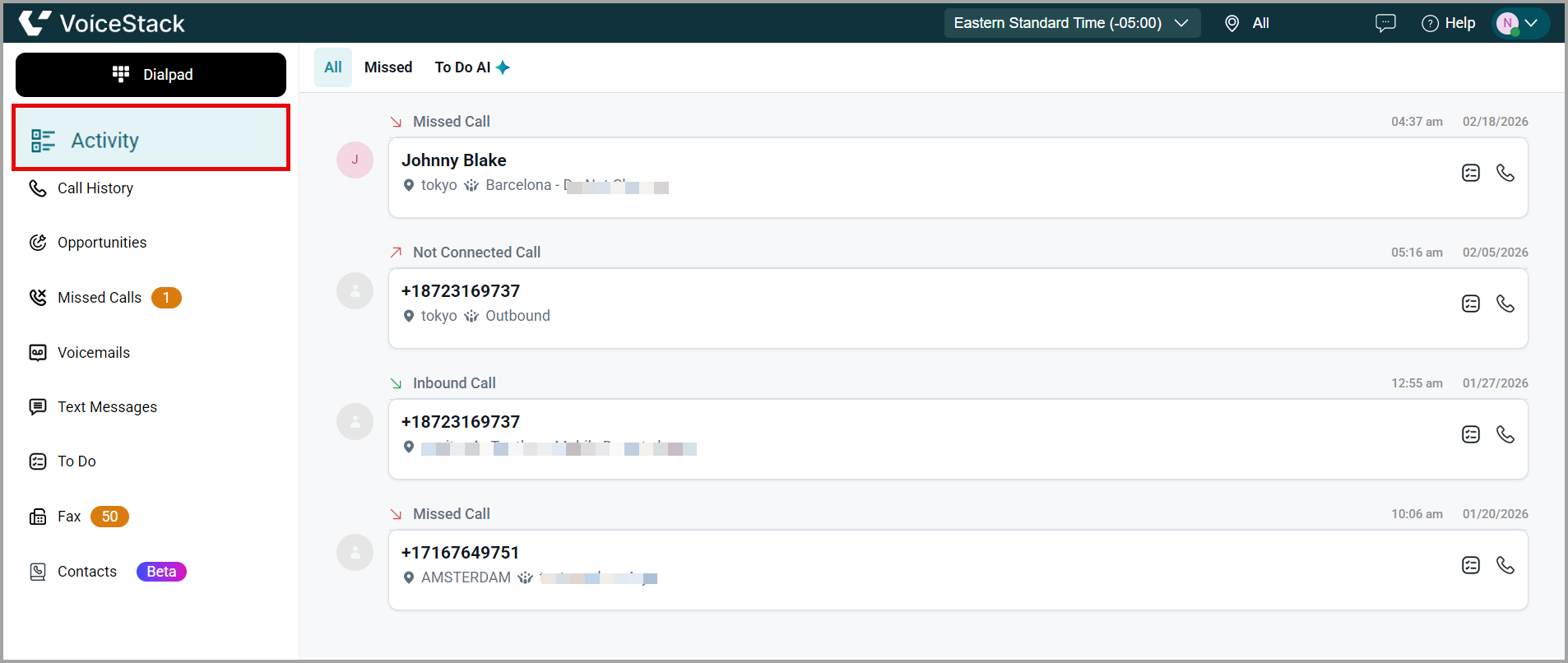
The Activity section helps agents to:
View all the call activity such as voicemails, missed calls, and inbound calls.
Listen to voicemails and read transcripts directly without switching screens.
Access call recordings and AI-generated summaries to quickly understand each conversation.
Take immediate action, call back, send a message, mark as done without interrupting the workflow.
Call History
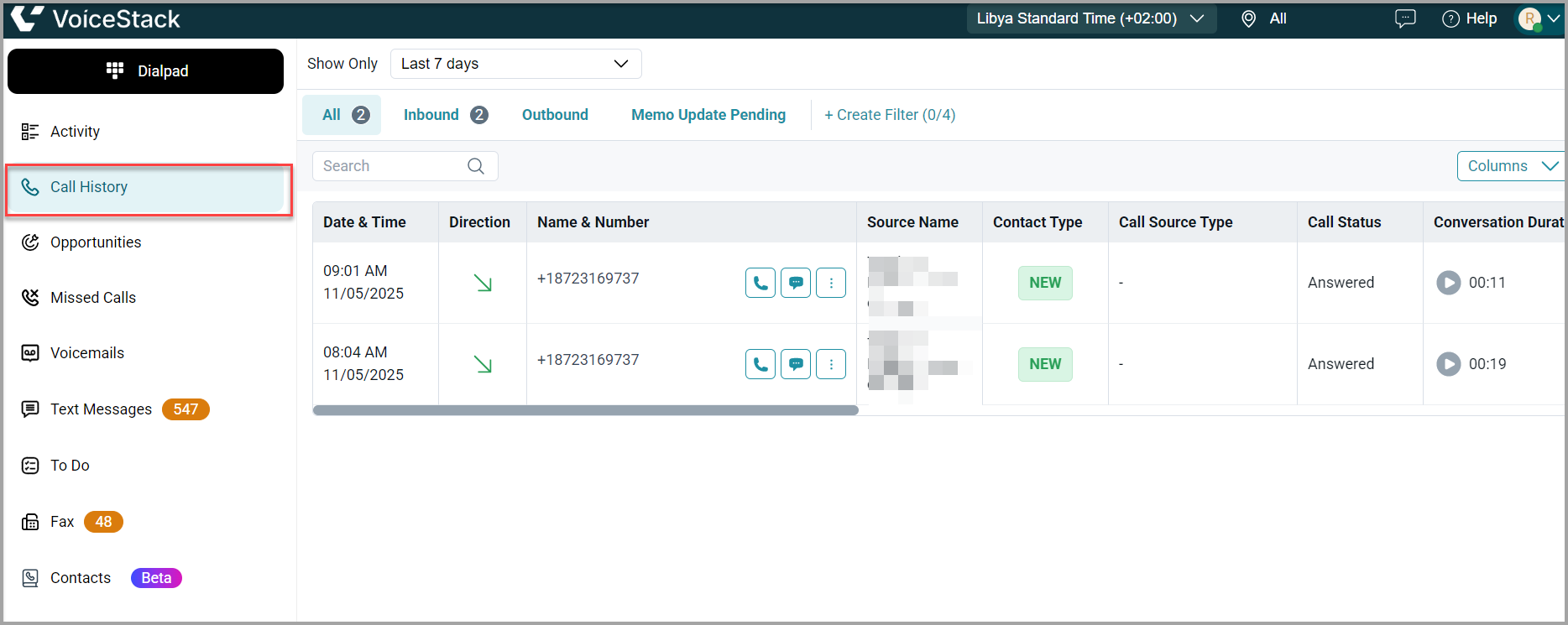
Call History is a complete record of all inbound and outbound calls. This feature helps you to:
- Review every patient interaction across various date range.
- Use it as a reference to confirm details, check timelines, or revisit commitments.
Opportunities
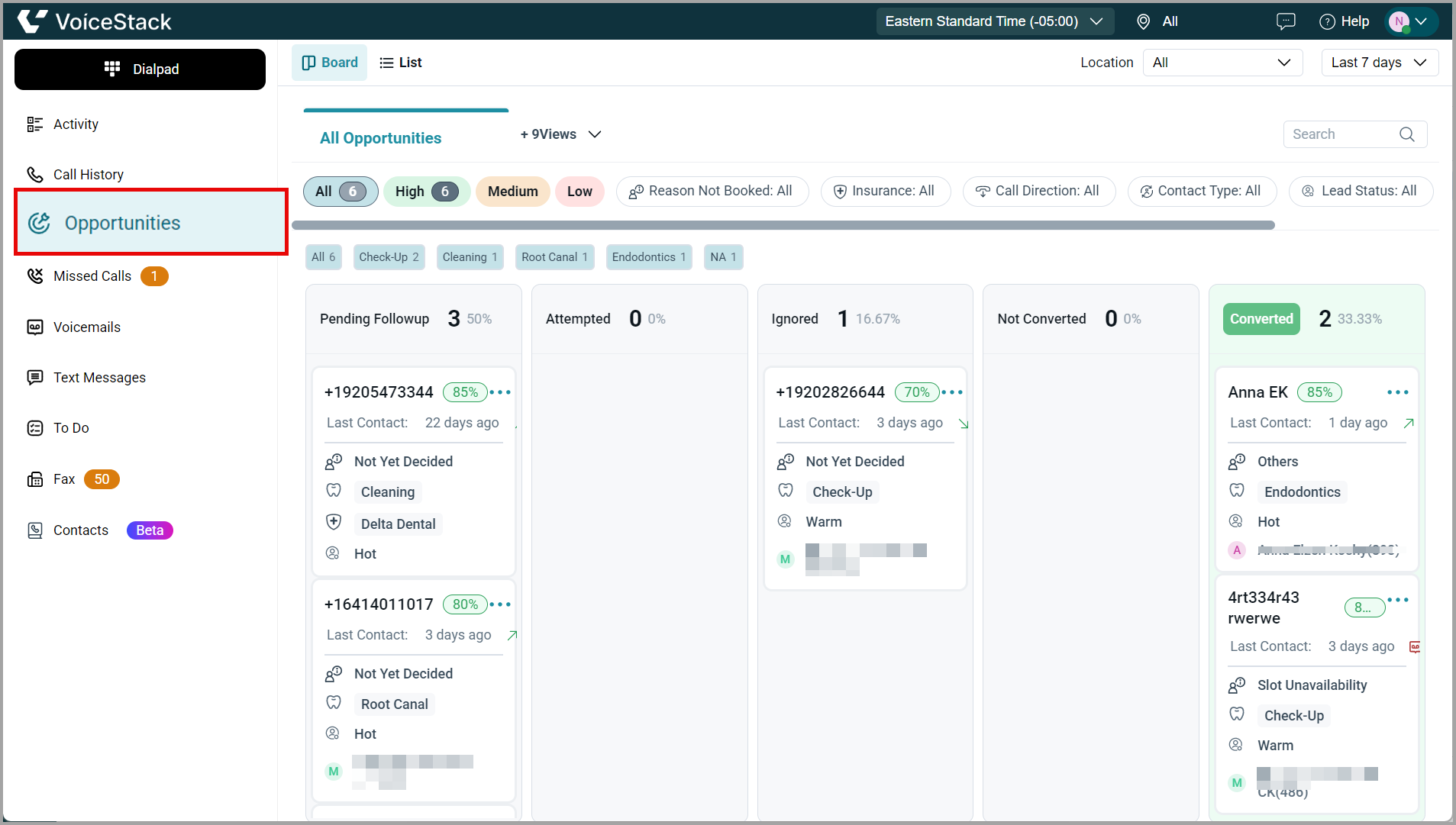
The Opportunities section displays all potential patient interactions that can be converted into appointments or treatments.
Presented in a Kanban-style board, it organizes opportunities into stages such as Pending Follow-up, Attempted, Ignored, Not Converted, and Converted giving a clear view of progress.
Each card shows key details like contact information, last contact date, lead status, treatment type, and assigned agent, along with conversion likelihood.
Filters at the top allow users to sort data by priority, reason not booked, insurance, call direction, contact type, or lead status.
Agents can also switch between Board and List views for flexible tracking and management.
Missed Calls
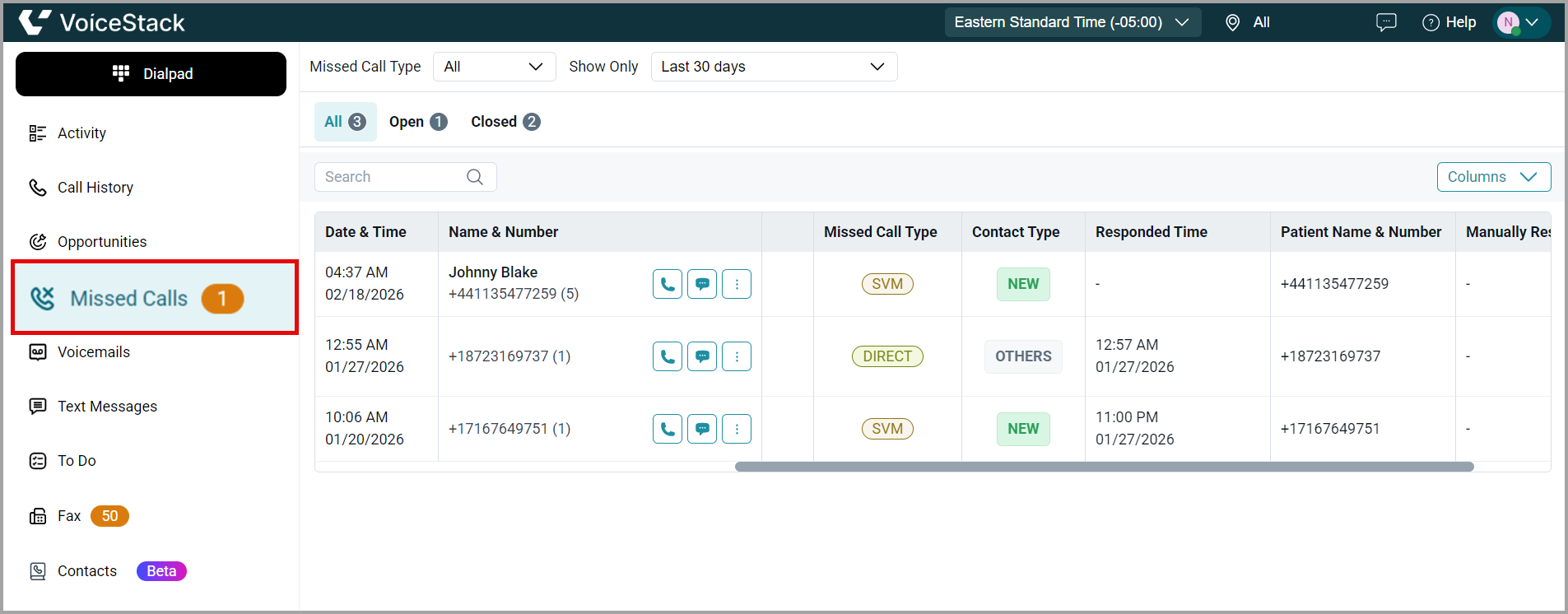
This is the filtered list of patients who could not be reached.
Displays all unanswered patient calls, categorized into All, Open, and Closed tabs.
Each entry shows date/time, contact, source, status, missed call type (Direct or SVM), and contact type.
Using the three dot menu (⋮), agents can mark as responded, ignore, or add to To-Do for later follow-up.
Voicemails
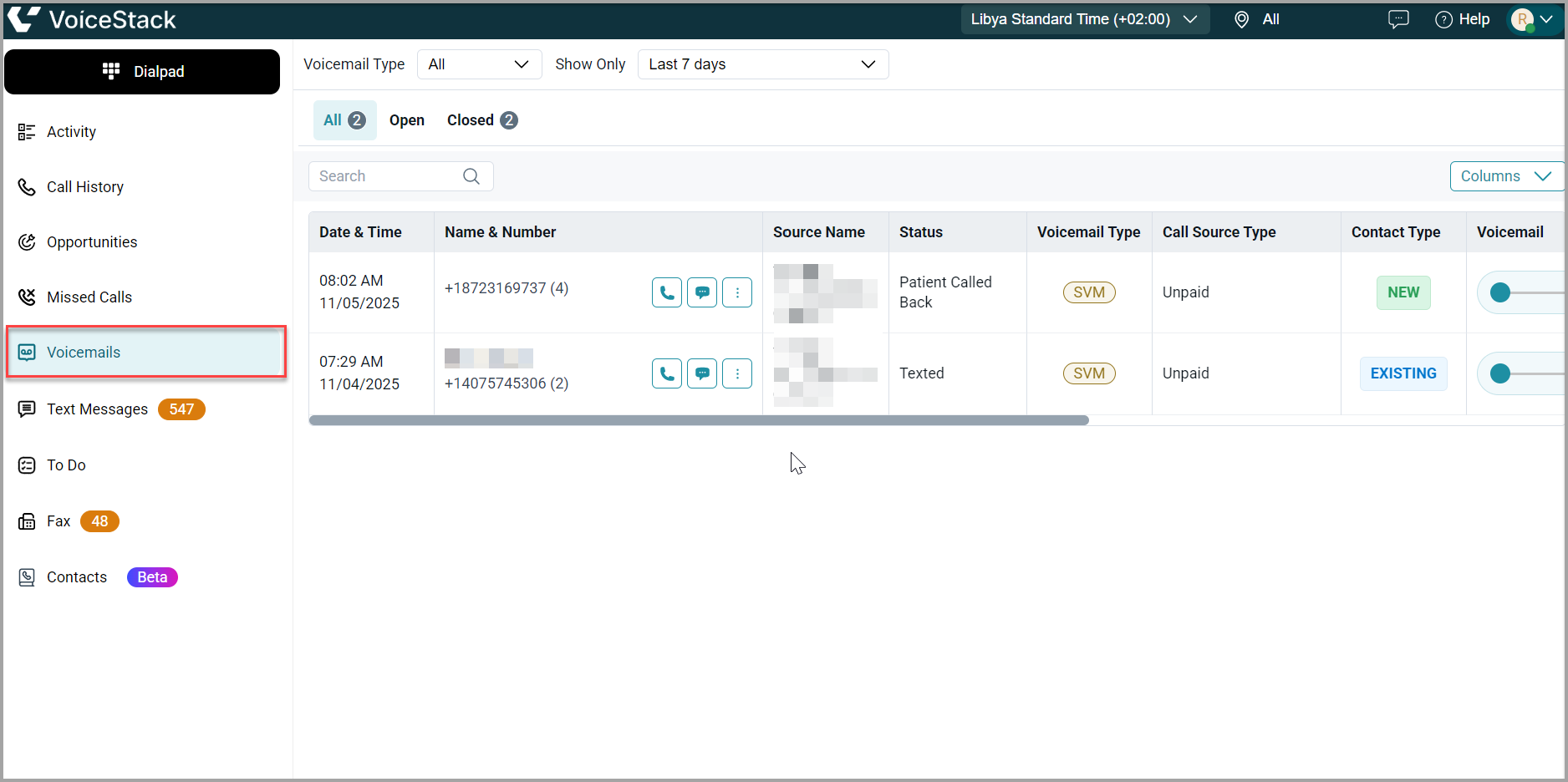
The Voicemail feature helps you to:
- Listen to voicemails, and see the caller details in one view.
- Click to call back or assign the voicemail to a team member if needed.
- Ensure no patient concern is missed even when you’re away from your desk.
Text Messages
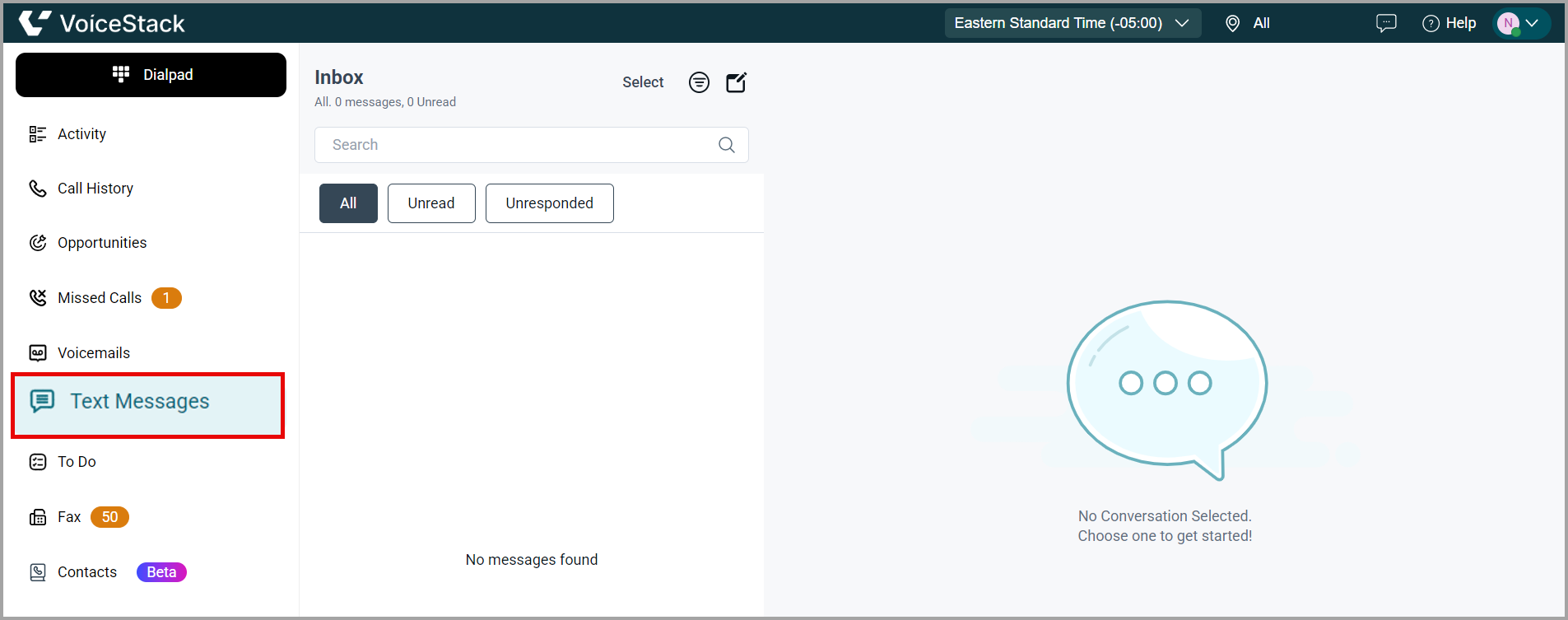
Patients sometimes prefer texting, and this tab keeps those chats organized. This feature helps to:
- Read patient texts and respond directly from the app.
- Keep all SMS conversations documented for clarity.
- Reduce call volume by handling simple requests via text.
To-Do
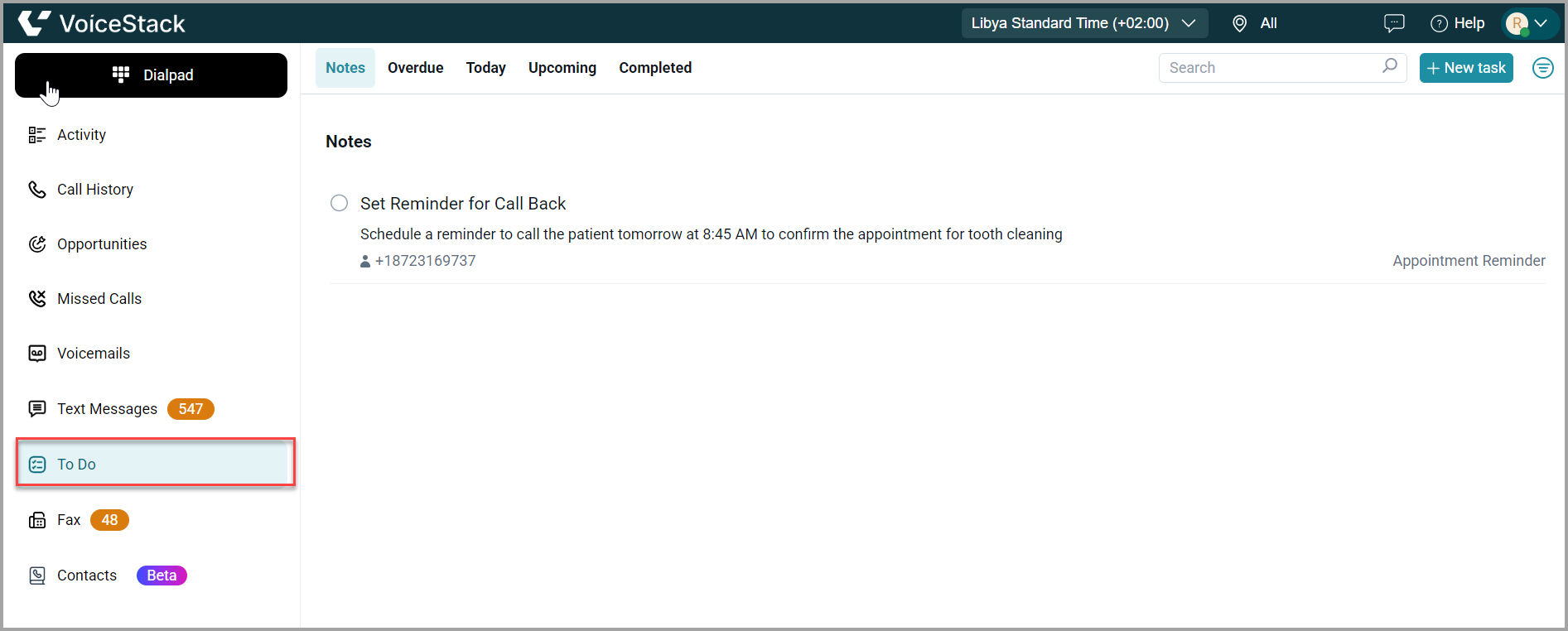
This helps agents create, manage, and track follow-up tasks efficiently, ensuring no important action is missed.
- Create New tasks, assign priority and categorize.
- See smart action items created from patient calls and voicemails.
- Get nudges for follow-ups, appointment confirmations, or unresolved concerns.
- Check off tasks as you complete them, helping you stay focused and productive all day.
Fax
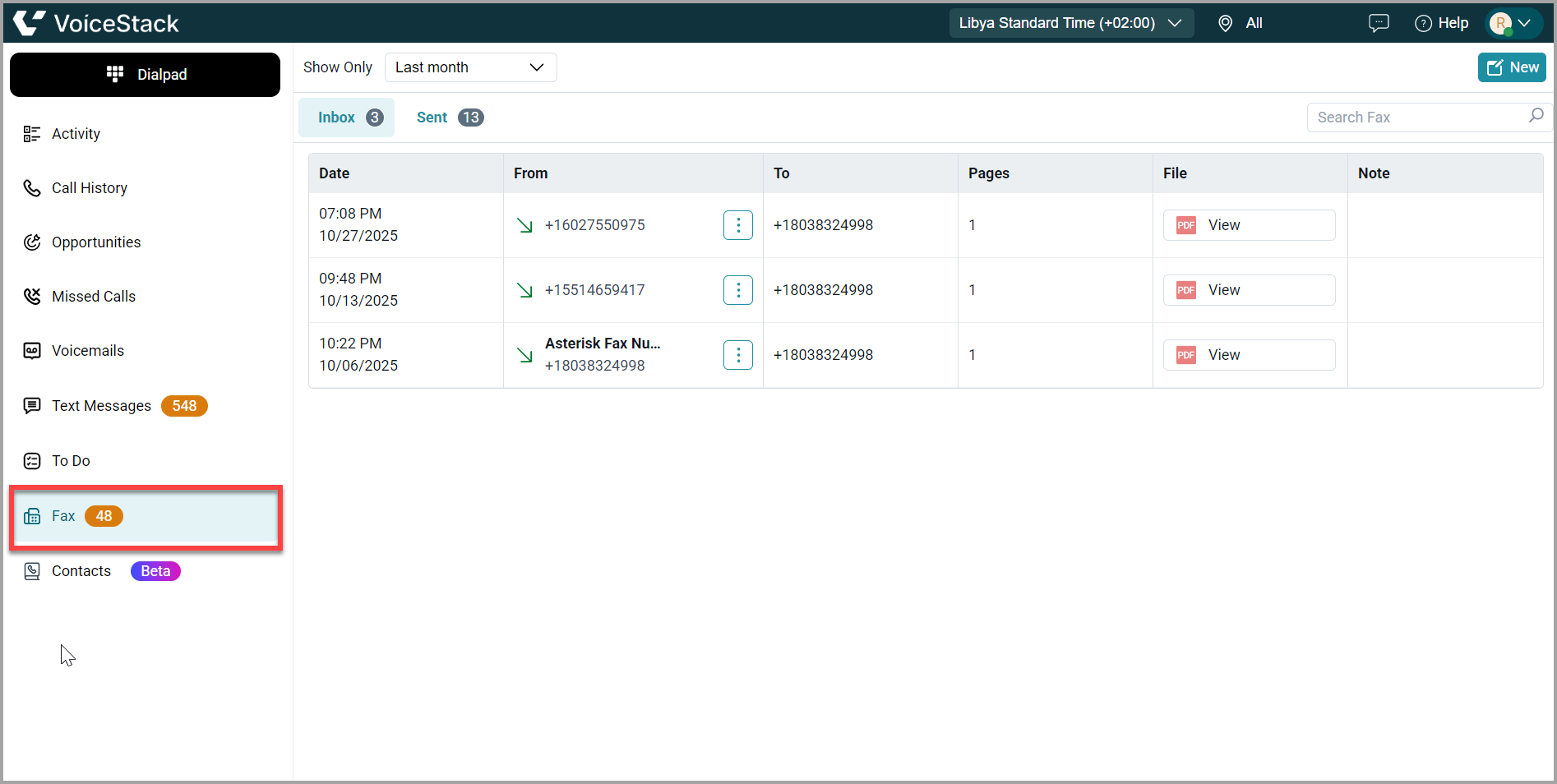
The Fax section is your go-to place for managing all fax communications right from the app.
Check the Inbox to see all faxes you’ve received.
Go to the Sent tab to view the faxes you’ve sent, along with their details and delivery status.
 Contacts
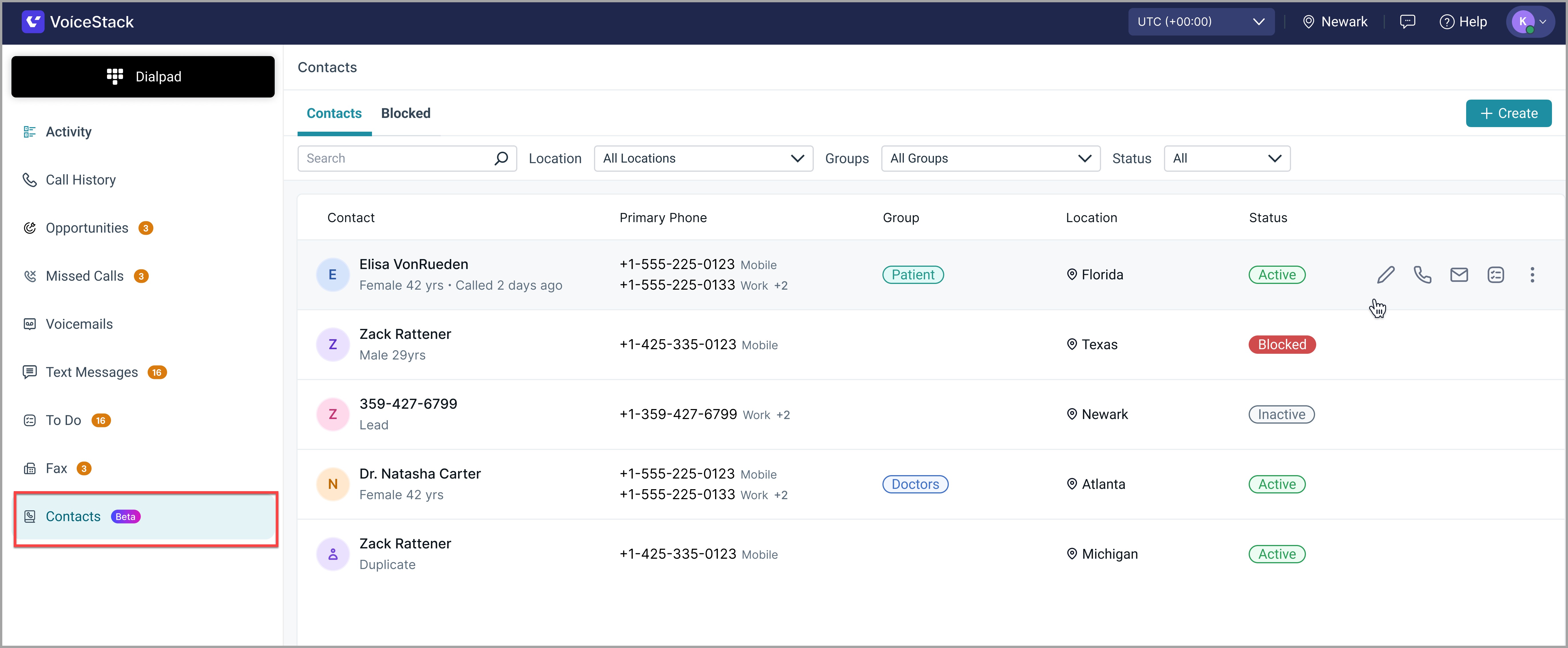
The Contacts section gives you easy access to all your saved contacts in one place.
View all contacts along with their status, location, and group.
Create new contacts or organize them into groups for better management.
Check the Blocked tab to see contacts you’ve restricted. You can also edit, call, or message any contact directly from this screen.
Support
Need further help? Reach out to us at support@voicestack.com or call 407-833-6436.
Was this article helpful?
That’s Great!
Thank you for your feedback
Sorry! We couldn't be helpful
Thank you for your feedback
Feedback sent
We appreciate your effort and will try to fix the article