Topics Covered:
Module: Agent App
Accessing the Feature
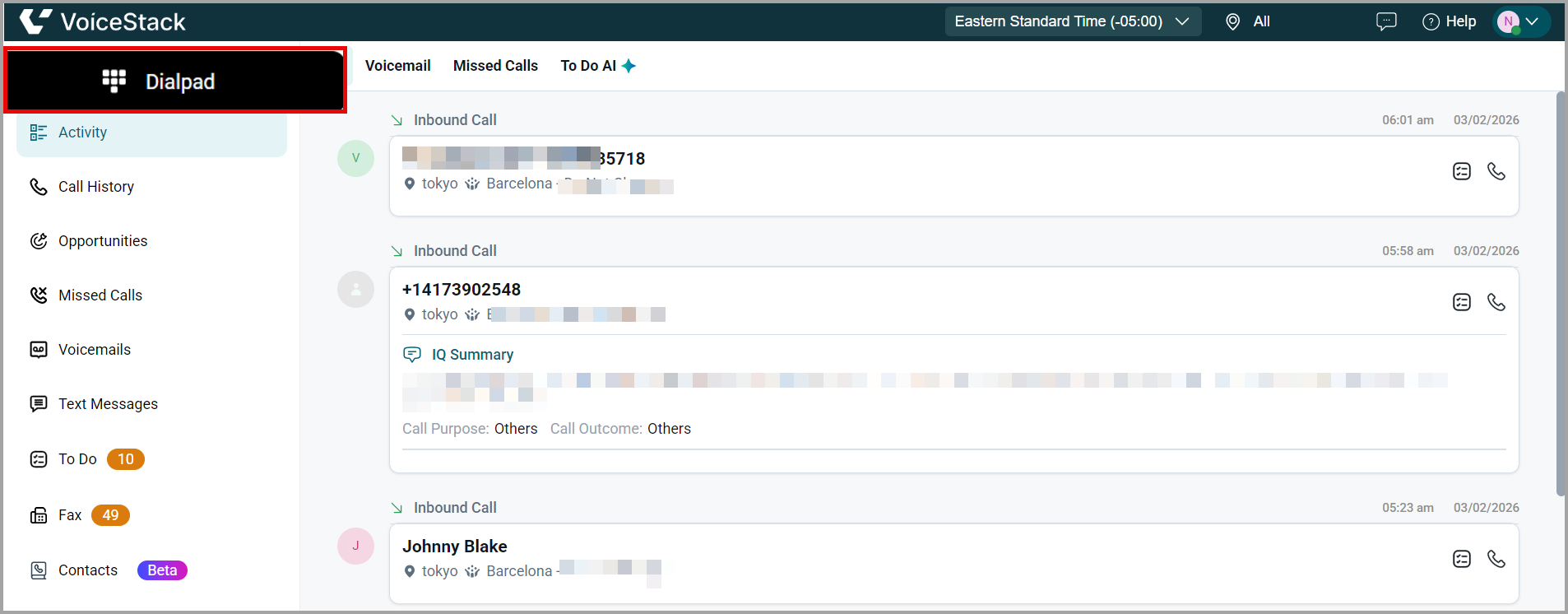
1. Navigate to VoiceStack Agent App > Dialpad.
 Selecting Caller ID
1. Click the Caller ID drop-down next to the phone number field.
- If your practice has multiple outbound numbers configured, you can choose the appropriate Caller ID before placing a call.
2. You can select the Caller ID in two ways:
- Scroll through the list to view all configured numbers, or
- Use the search bar to quickly find a Caller ID by entering the location name or the phone number.
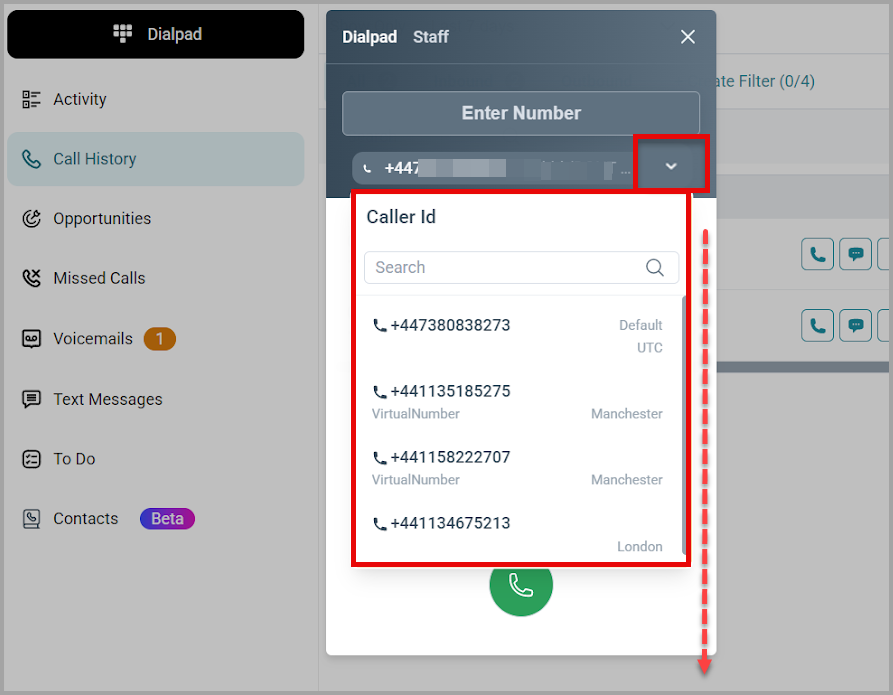
3. Click the desired Caller ID. This will set the phone number that patients see when they receive your call.
Note: The available Caller IDs are configured in the Admin App. For any updates or to add new numbers, please contact your practice administrator. |
Use Case
Scenario: An agent working in a multi-location practice needs to call a patient who booked an appointment at a different branch.
Action: Before dialing, the agent selects the outbound Caller ID for the correct location to ensure the patient recognizes the incoming call.
Benefits
- Higher call pick-up rates.
- Clear and consistent patient communication.
- Reduces confusion when patients return missed calls.
- Strengthens trust by displaying a familiar legitimate number.
- Multiple Caller IDs can be configured per agent.
- The default Caller ID is used if none is manually selected.
- Ensures location-appropriate communication.
Best Practices
- Always select the Caller ID that matches the patient’s appointment location.
- Use the search bar for faster selection in practices with many locations.
- Double-check the Caller ID before placing high-importance calls.
- Train staff to understand which numbers are associated with which locations.
Support
Need further help? Mail us at support@voicestack.com or call 407-833-6436.
Was this article helpful?
That’s Great!
Thank you for your feedback
Sorry! We couldn't be helpful
Thank you for your feedback
Feedback sent
We appreciate your effort and will try to fix the article