TABLE OF CONTENTS
- How to Access Call Scoring
- Call Scoring Parameters
- Assigning Weightage to Call Scoring Parameters
- Configuring Scoring Criteria for Call Scoring Parameters
- Best Practices
- Support
Module: Admin App
How to Access Call Scoring
1. From the side panel in the admin app, select Configuration.
2. Under General Settings, select Call Scoring.
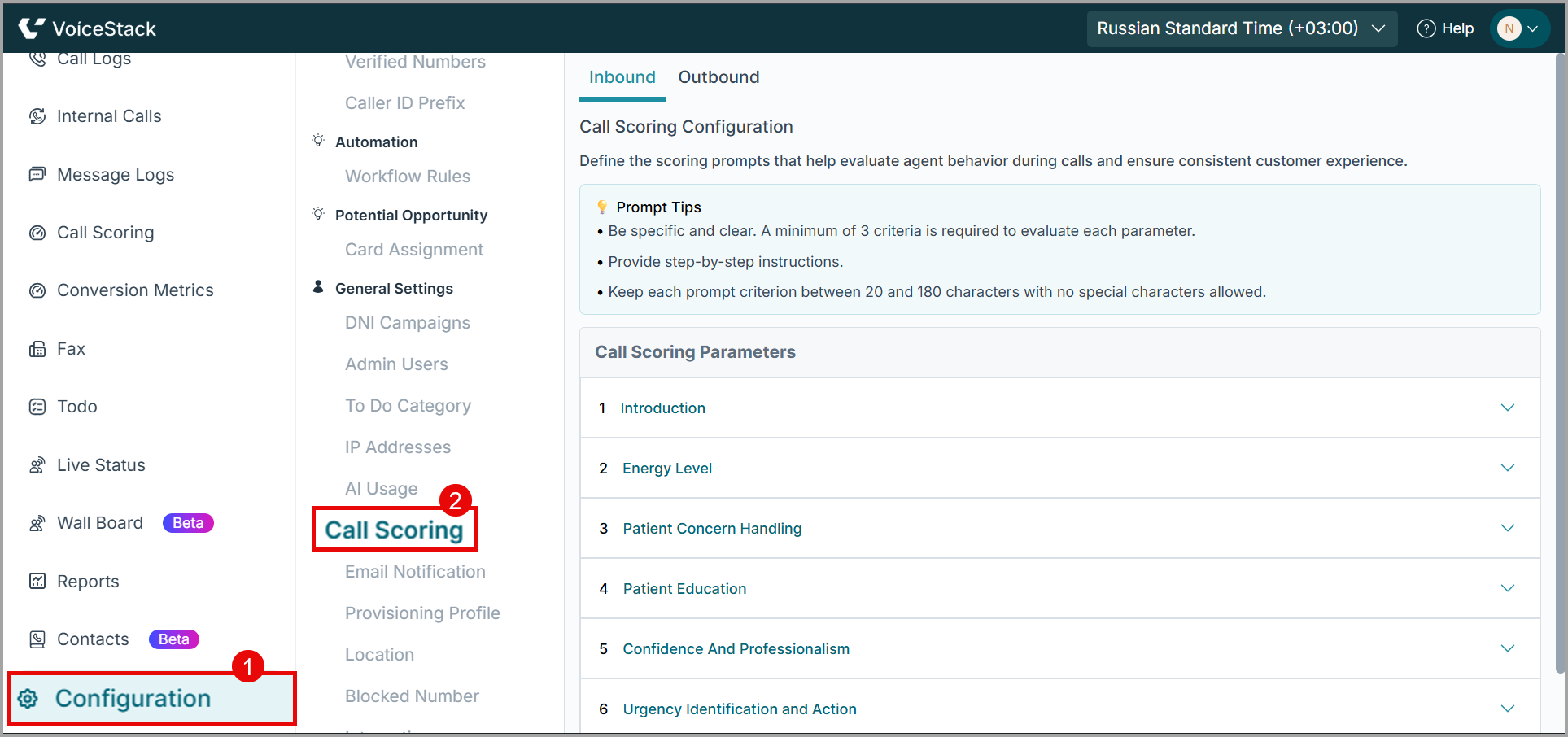
3. The Call Scoring screen opens with two separate sections.
- Inbound: For calls received by agents.
- Outbound: For calls made by agents.
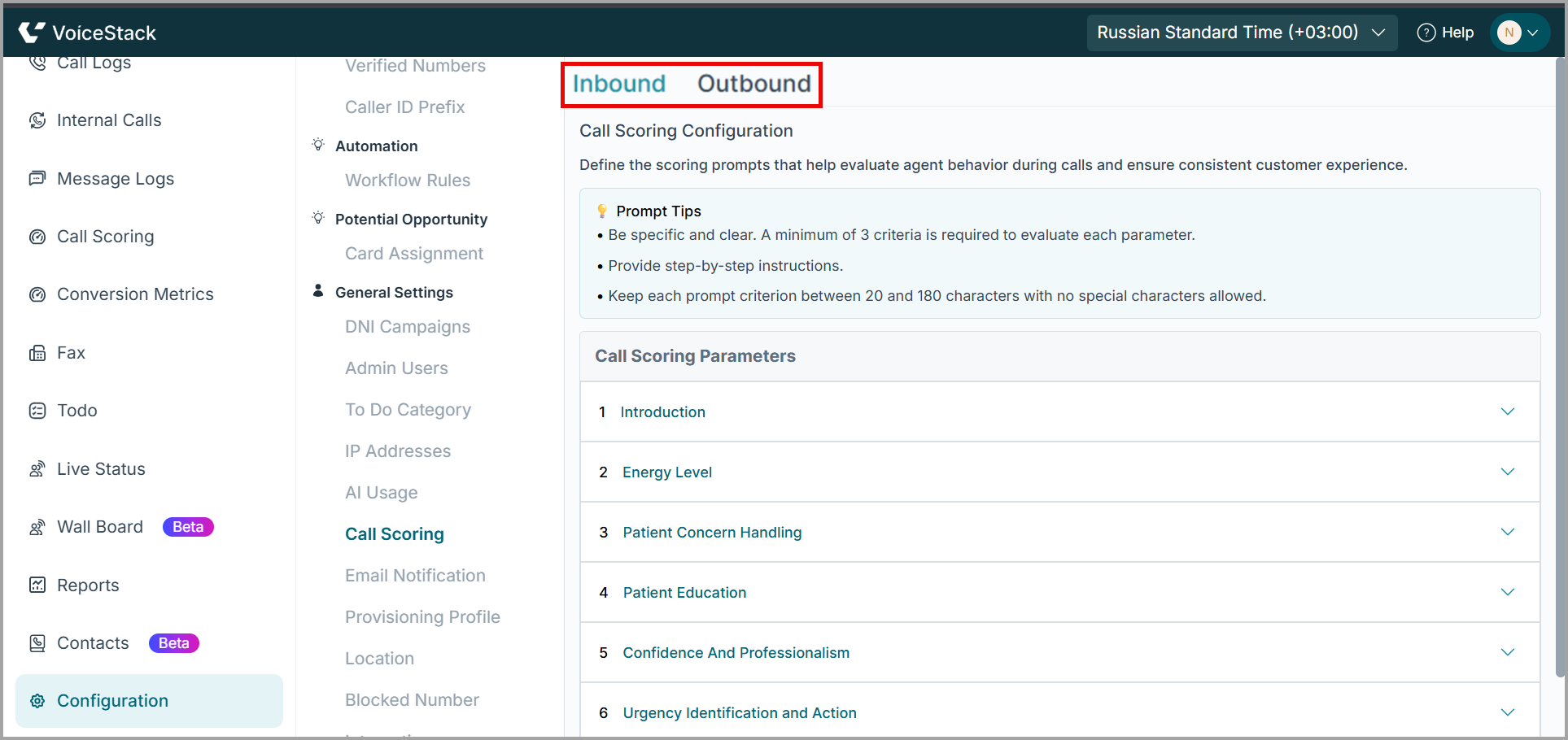
4. Select the appropriate section to add or edit prompts for that call type.
Call Scoring Parameters
These are the fixed parameters used to evaluate agent performance during inbound and outbound calls.
Parameter | Description | Call Type |
| Introduction | Evaluate how clearly and warmly the agent greets the caller. | Inbound & Outbound |
| Energy Level | Assess the agent’s enthusiasm and positivity. | Inbound & Outbound |
| Patient Concern Handling | Evaluate how effectively the agent listens and addresses patient concerns. | Inbound & Outbound |
| Patient Education | Assess how well the agent conveys information to help the patient understand their care. | Inbound & Outbound |
| Confidence & Professionalism | Evaluate agent confidence and ability to maintain control during the call. | Inbound & Outbound |
| Urgency Identification & Action | Assess agent recognition and response to urgent needs. | Inbound |
| Booking Effort | Assess agent skill in guiding patient to schedule an appointment. | Outbound |
| Call Closing | Evaluate how smoothly the agent concludes the call and confirms next steps. | Inbound & Outbound |
Assigning Weightage to Call Scoring Parameters
Each of the eight call scoring parameters can be assigned a weight from 1 to 5 to determine its impact on the overall score.
1. Locate Weight Field
- For each parameter, find the Weightage field as shown below.
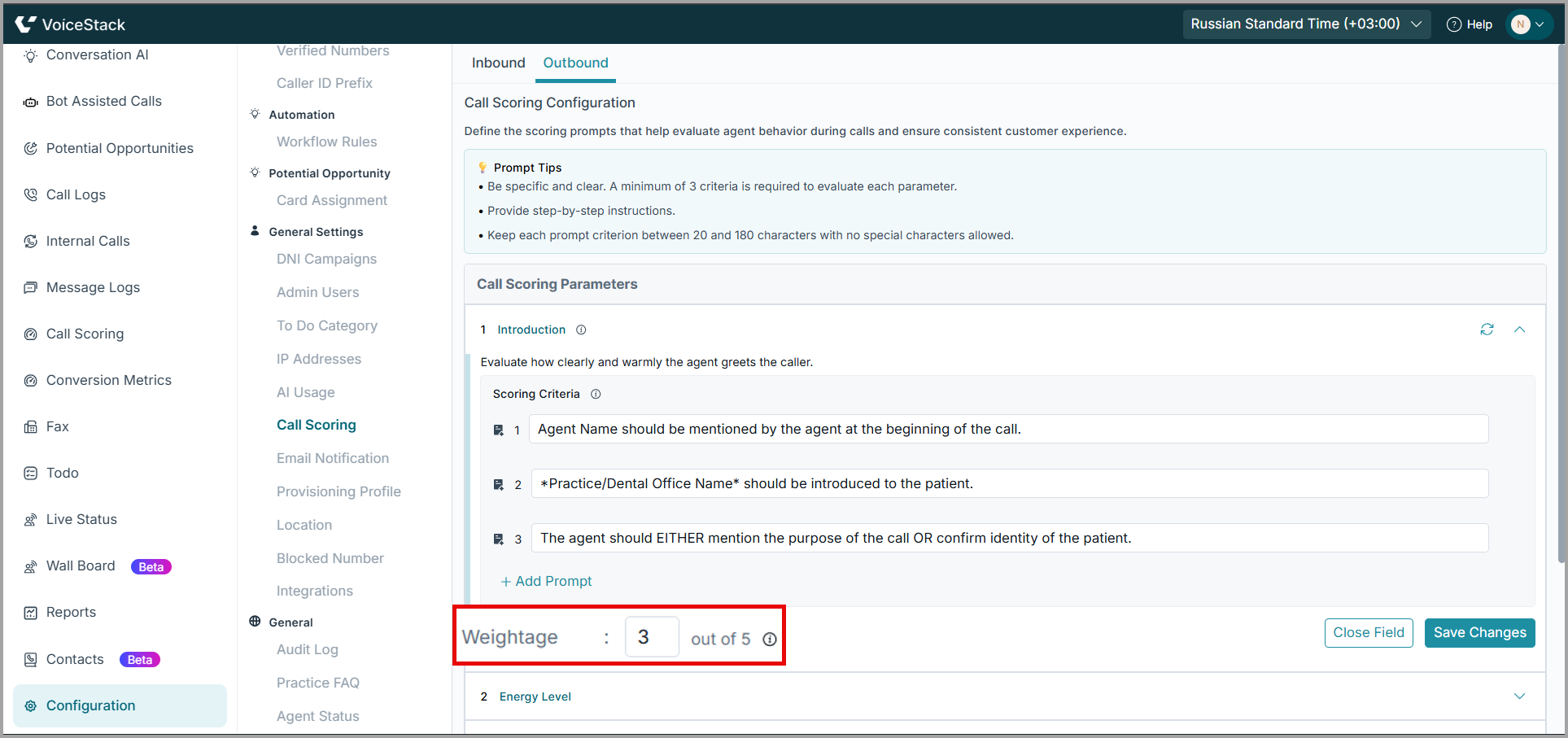
2. Assign a Value
Assign a value ranging from 1 to 5.
- 1 = Low impact
- 3 = Medium impact
- 5 = High impact
3. Review Distribution
- Assign higher weights to critical behaviors (for example, Booking Effort and Patient Concern Handling) and lower weights to routine checks (such as Introduction).
4. Save Changes
- Click Save Changes to finalize.
Configuring Scoring Criteria for Call Scoring Parameters
Scoring Criteria are predefined prompts that guide call evaluation, ensuring consistent and standardized agent assessment.
1. Adding Prompts to a Call Scoring Parameter
- Navigate to the desired call scoring parameter.
- Beneath each parameter, you will see a list of existing prompts.
- Review the available prompts
- Click +Add Prompt to add new prompts.
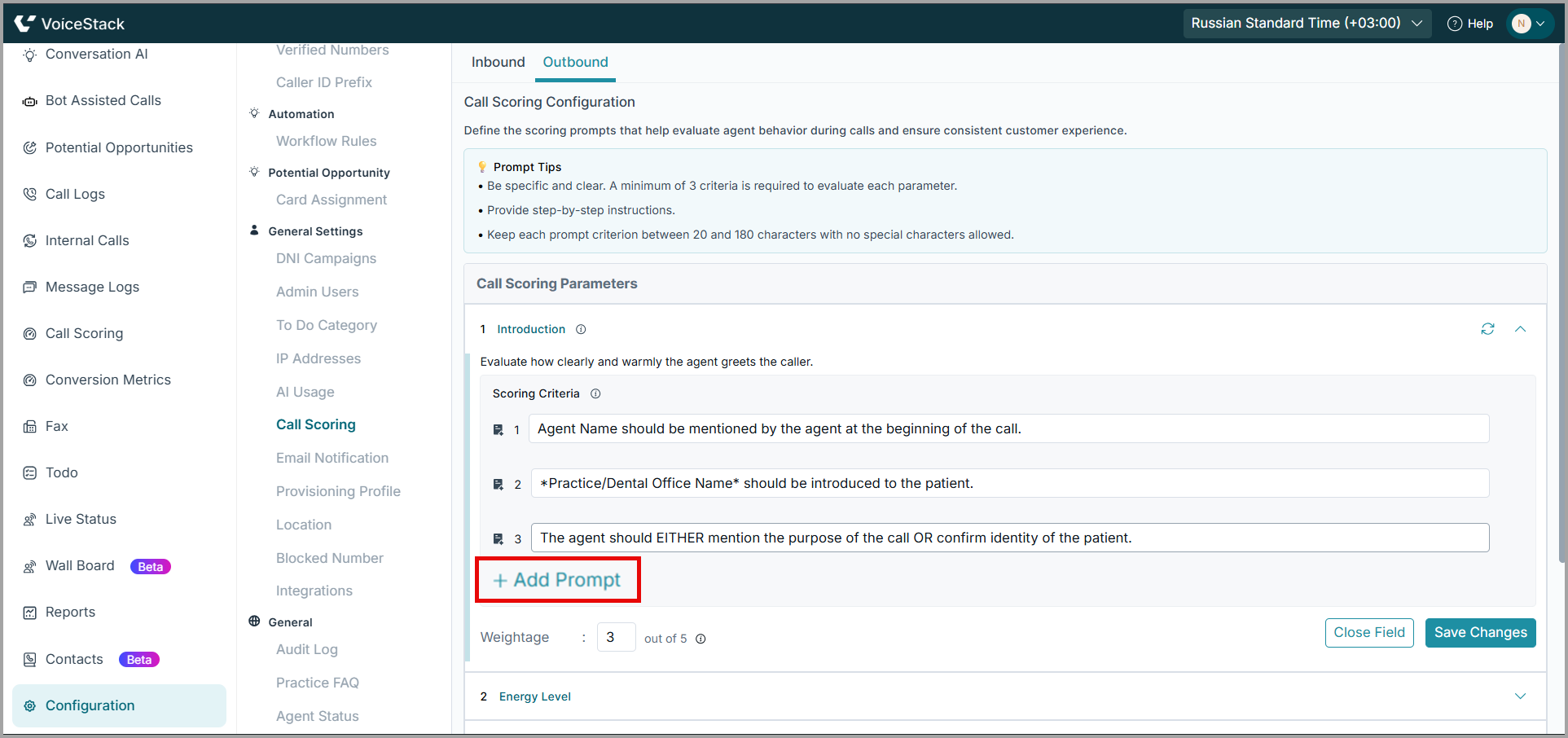
2. Save Changes
- Repeat for each parameter as needed, then click Save Changes to apply.
| Note: Only users with Super Admin roles can create or edit prompts. Other users have view-only access. |
Best Practices
Prompt Guidelines
- Provide clear, specific instructions for each parameter.
- Include 3–6 measurable criteria per parameter.
- Keep each scoring criterion between 20 and 180 characters and avoid special characters.
- Write prompts as step-by-step instructions for evaluating calls.
Support
Need further help? Contact support@voicestack.com or call 407-833-6436.
Was this article helpful?
That’s Great!
Thank you for your feedback
Sorry! We couldn't be helpful
Thank you for your feedback
Feedback sent
We appreciate your effort and will try to fix the article