TABLE OF CONTENTS
- Accessing the Feature
- Configuring Hubspot
- Configure Advanced Automation
- Edit Integrations
- Use Cases
- Benefits
- Support
Accessing the Feature
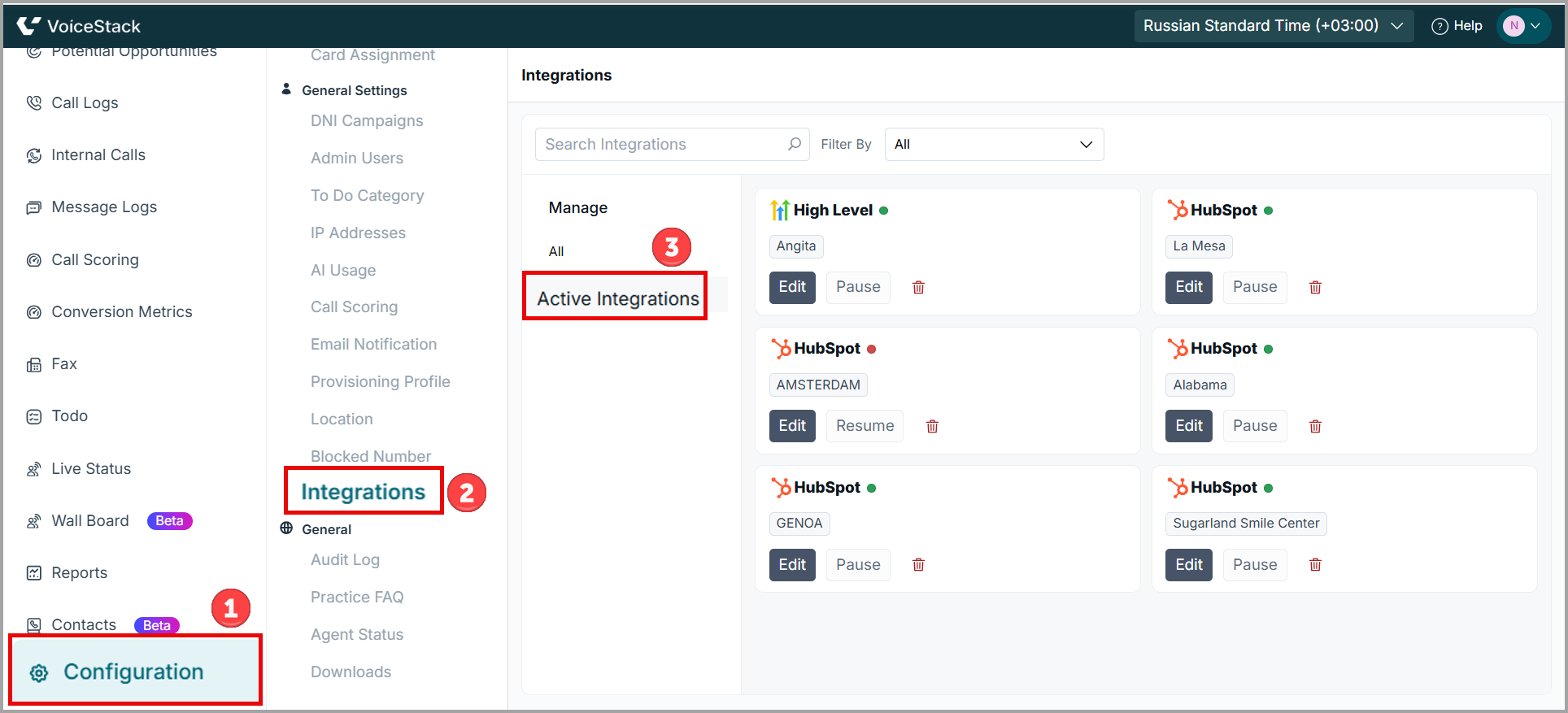
- Navigate to the Configuration > General Settings > Integrations.
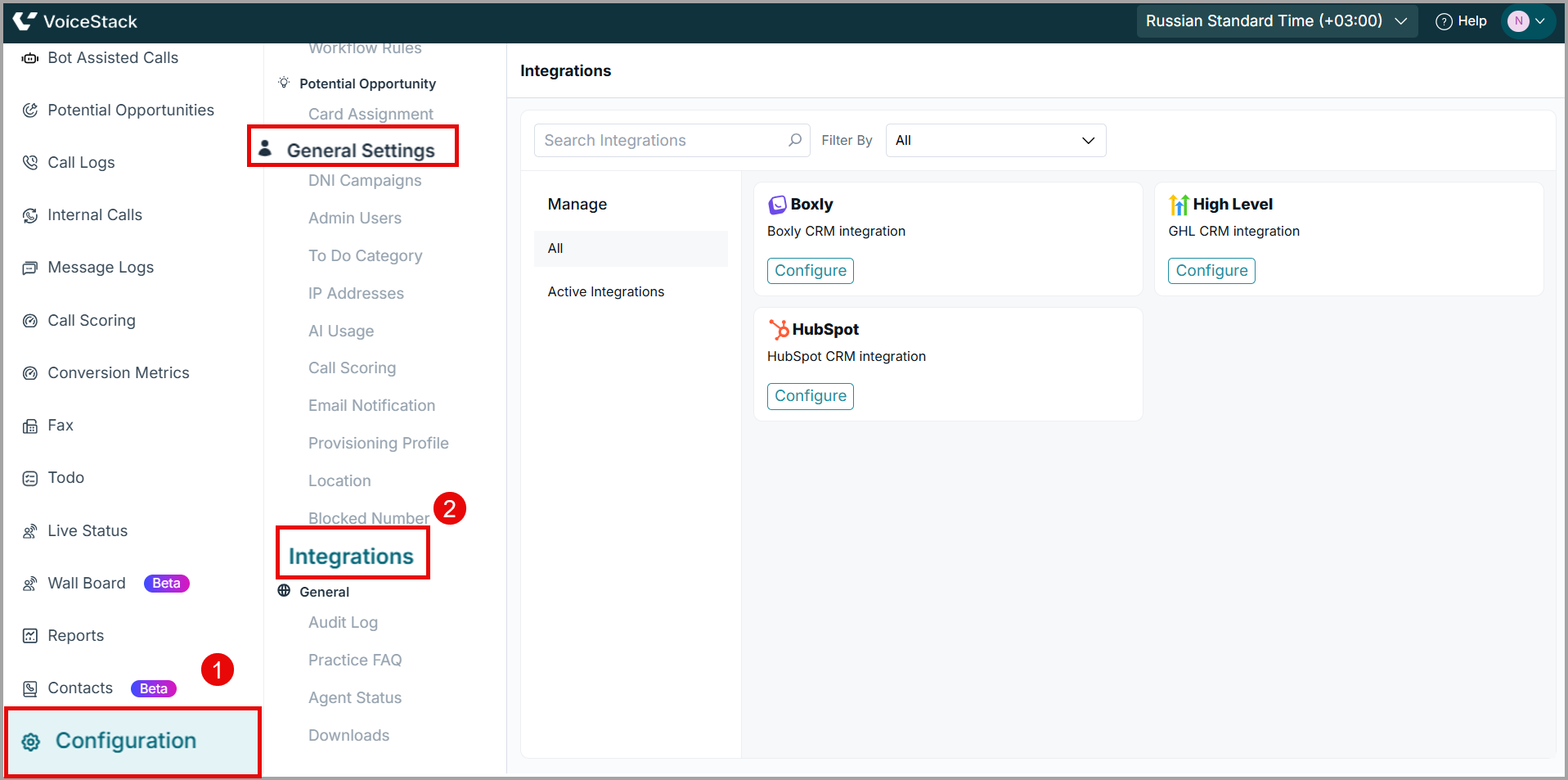
Configuring Hubspot
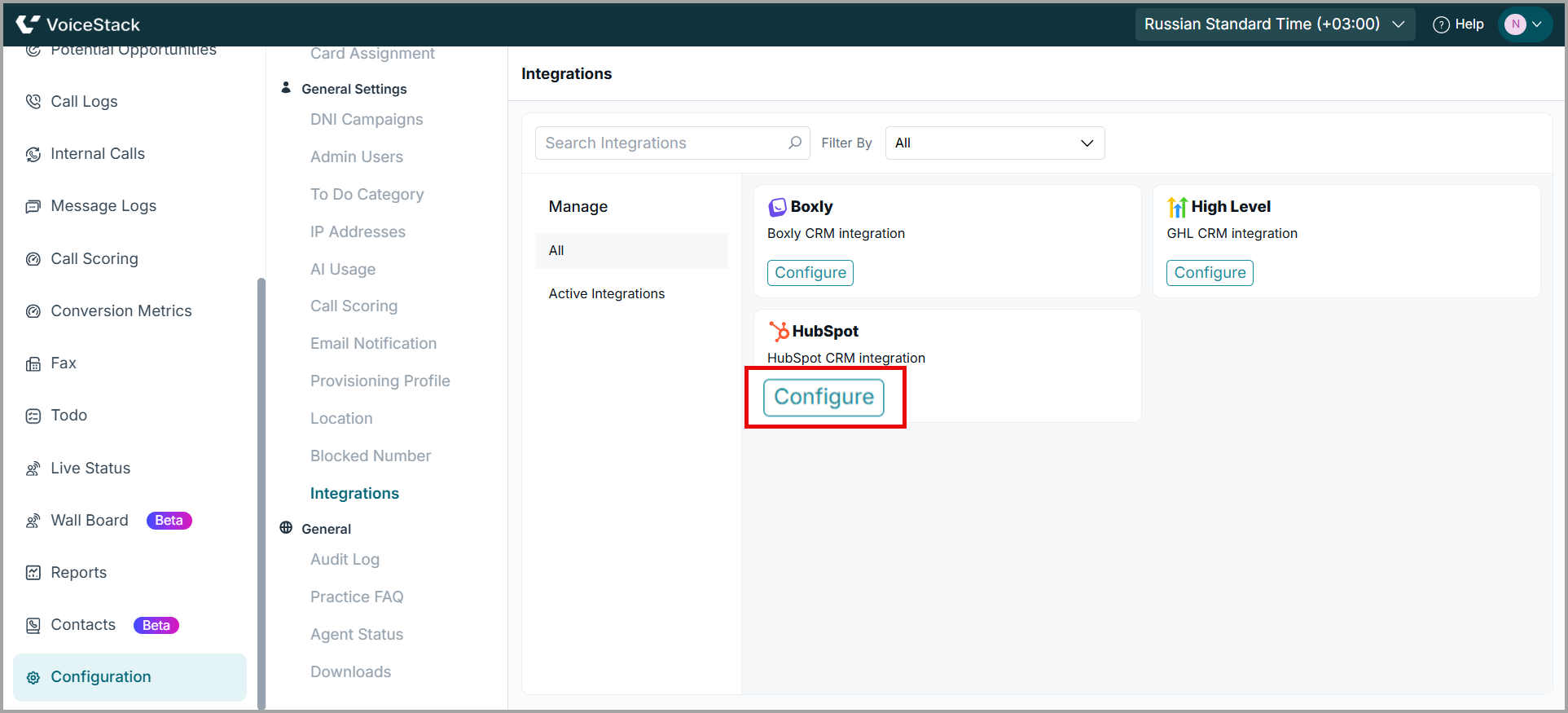
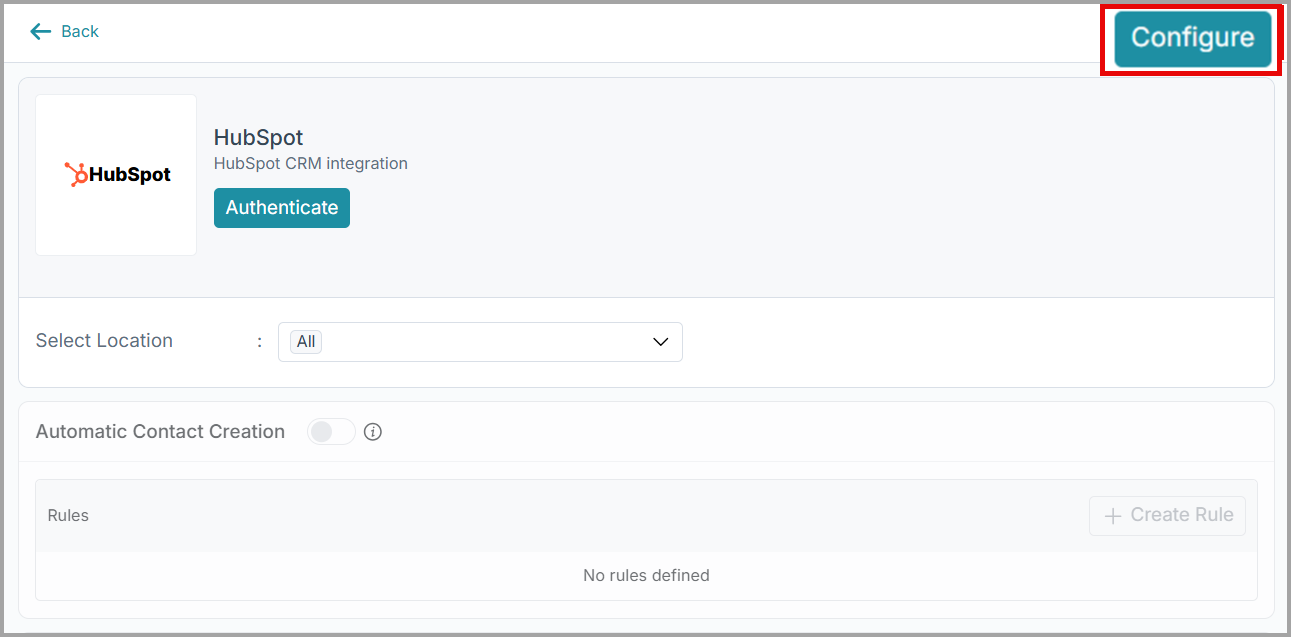
- To configure hubspot locate the HubSpot card and click Configure.
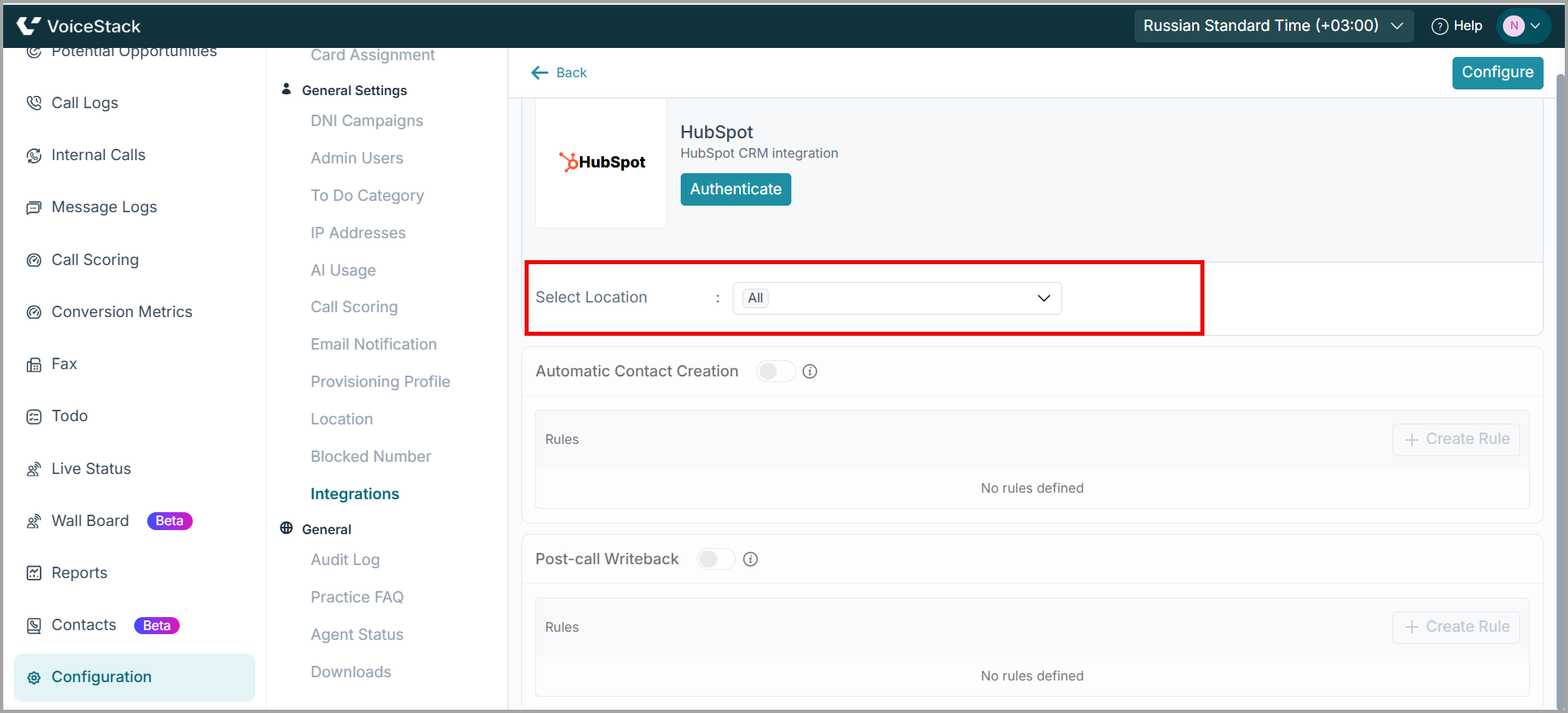
2. Navigate to Select Location. Use the dropdown menu to select the location (for example, GENOA or Camdenfort) to which this integration should apply.
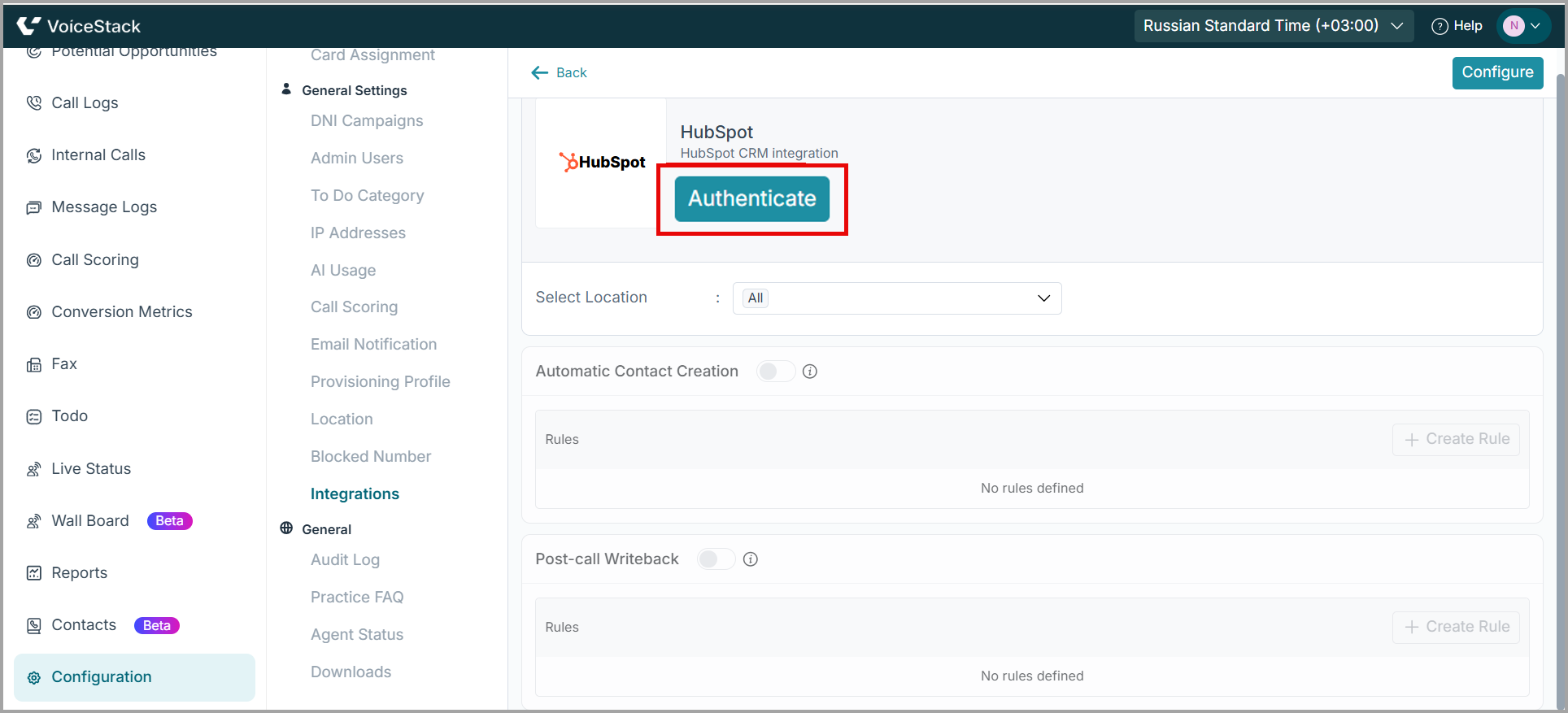
3. Click the Authenticate button. You will be redirected to the HubSpot login portal to complete the authentication process.
4. Select the specific HubSpot account you want to connect and click Choose Account.
5. Review the requested data access permissions. Scroll to the bottom, check the “I understand…” box, and click Connect app.
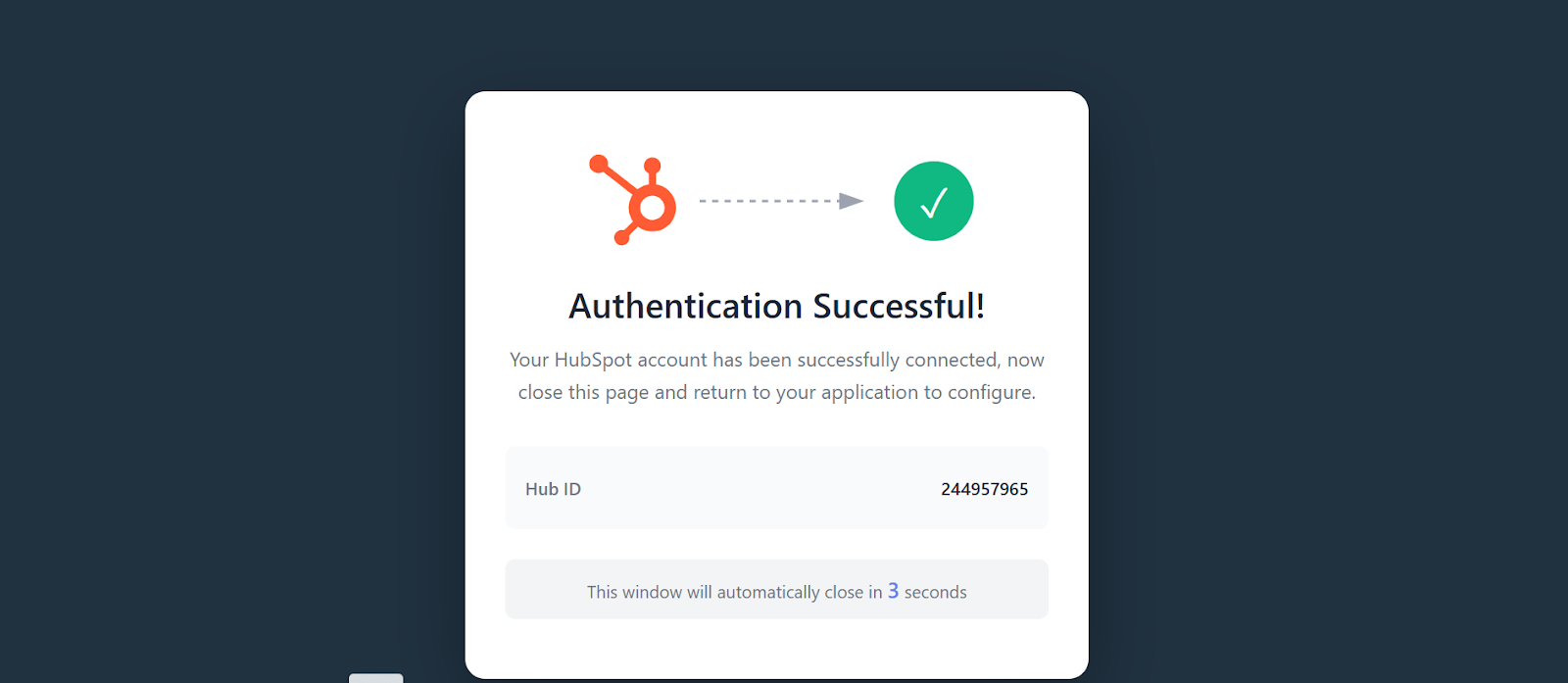
Once the authentication is successful, you will be redirected back to VoiceStack.
Configure Advanced Automation
1. Automatic Contact Creation
When a call involves a phone number that does not exist in your HubSpot CRM, VoiceStack identifies it as a new prospect. Instead of manually typing in details, the system instantly generates a new contact record for you. This feature ensures no lead is missed by automatically building your CRM database.
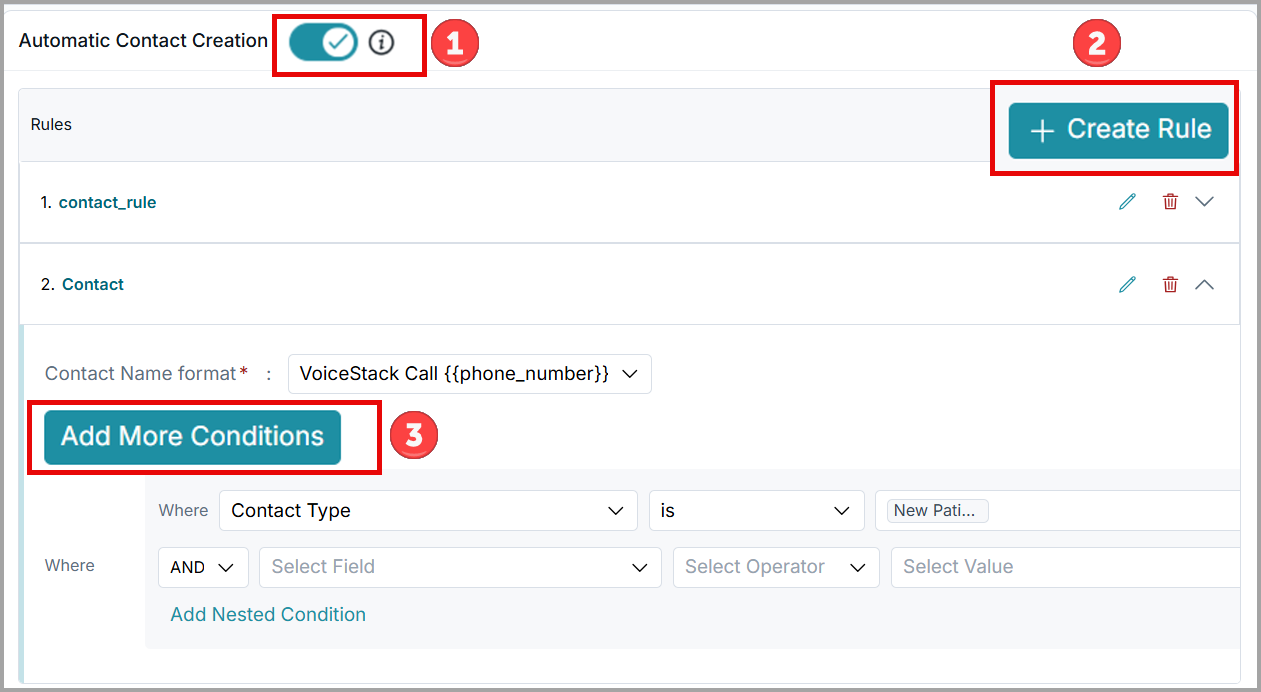
- Toggle the switch to ON to enable Automatic Contact Creation.
- Click + Create Rule.
Enter a descriptive name for the rule (for example, New Patient Leads).
Choose the contact name format in HubSpot (for example, VoiceStack Call {{phone_number}} to easily identify the lead source).
Click Add More Conditions to define criteria to keep your CRM organized.
2. Post-call Writeback
Toggle Post-call Writeback to ON to enable automatic call logging.
Click + Create to add conditions, such as logging calls only for specific contact types (for example, Existing Patient).
After each call ends, VoiceStack automatically writes call details including duration, direction, and summaries to the contact’s timeline in HubSpot.
| Note: If the contact does not already exist, the system will automatically create one using your configured Contact Name Format, ensuring the call log is saved successfully. |
3. Click Configure at the top right of the page to store and activate your settings.
Edit Integrations
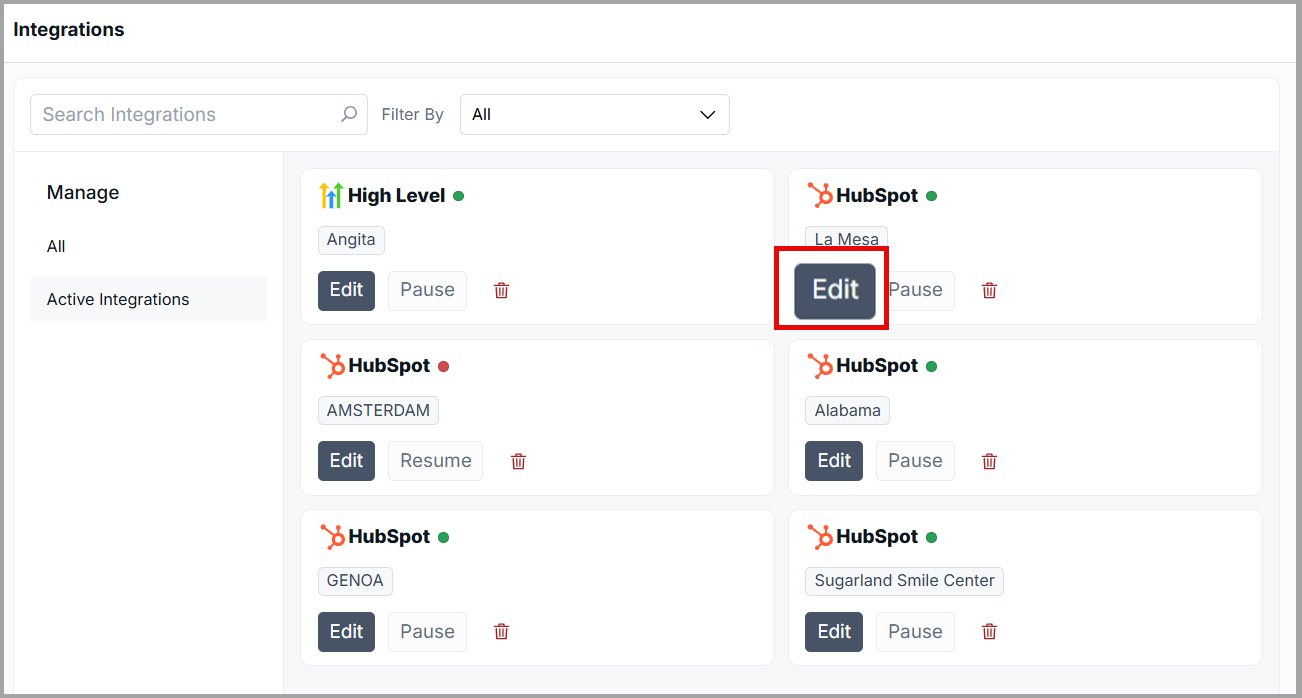
Navigate to Configuration >Integrations > Active Integrations.
Hover over the integration you want to modify and click Edit.
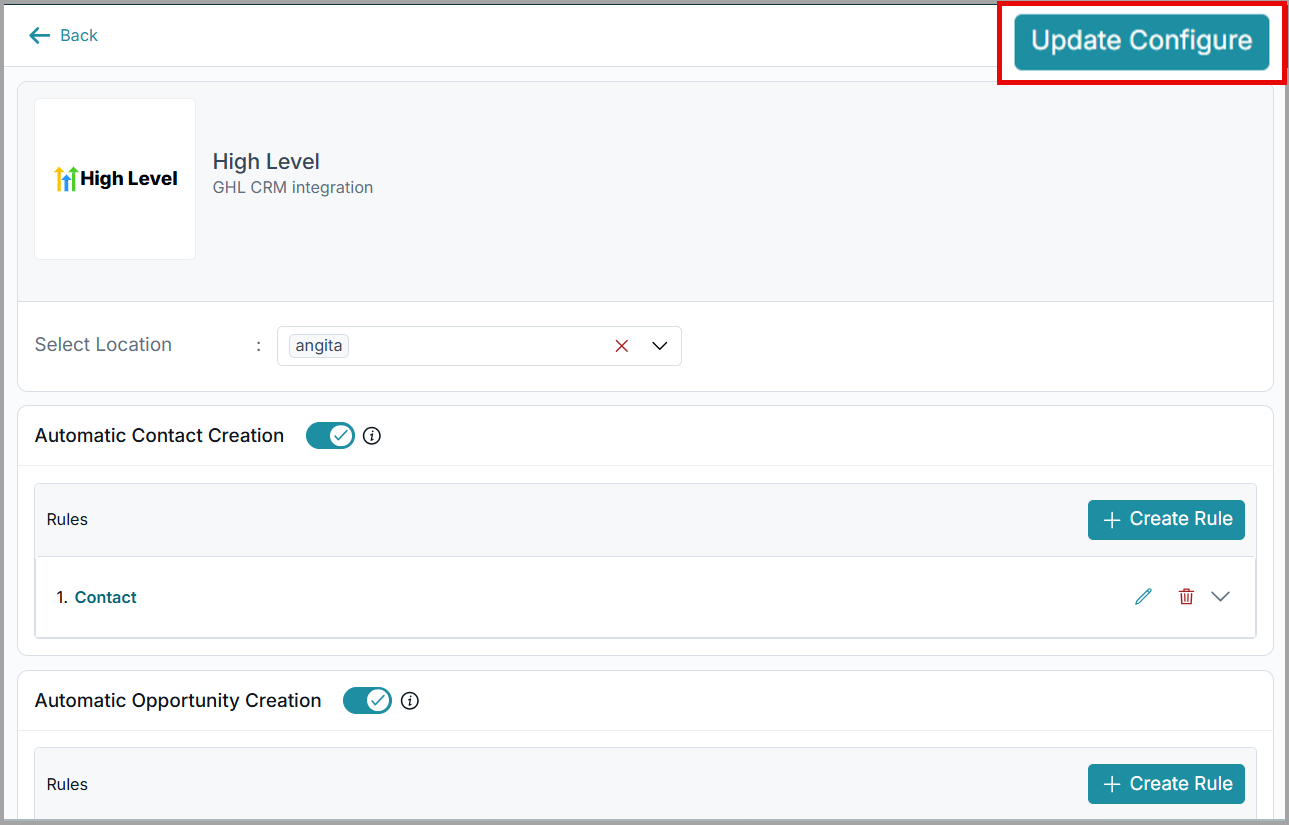
3. Make the required changes and click Update Configuration to save your updates.
Use Cases
New Lead Capture: Automatically create a contact for first-time callers and enable quick follow-up.
Service History Tracking: Log call summaries and details to maintain a complete customer timeline.
Campaign Tracking: Track new leads generated from marketing campaigns through automatic contact creation.
Location-Based Syncing: Sync call data only for selected branches to maintain clean, organized CRM records.
CRM Cleanup: Apply conditions (e.g., minimum call duration) to prevent unnecessary call logs.
Benefits
Saves Time & Reduces Errors: Automates contact creation and call logging, eliminating manual data entry.
Comprehensive Lead Capture: Automatically creates new contacts in HubSpot for unknown numbers, ensuring no lead is missed.
Accurate, Real-Time CRM Updates: Logs call details instantly through Post-call Writeback from VoiceStack.
Targeted Data Control: Use conditional rules to log only relevant contacts and calls.
Multi-Location Support: Configure integration settings separately for different branches.
Support
Need further help? Contact support@voicestack.com or reach out to us at 407-833-6436.
Was this article helpful?
That’s Great!
Thank you for your feedback
Sorry! We couldn't be helpful
Thank you for your feedback
Feedback sent
We appreciate your effort and will try to fix the article