TABLE OF CONTENTS
- Accessing Integration Settings in VoiceStack
- Generating the API Key
- Installing VoiceStack App in Go High Level
- Installing VoiceStack for Sub-Accounts
- Connecting Sub-Accounts with VoiceStack
- Confirming Integration
- Use Cases
- Benefits
- Best Practices
- Support
Accessing Integration Settings in VoiceStack
Log in to your VoiceStack admin account.
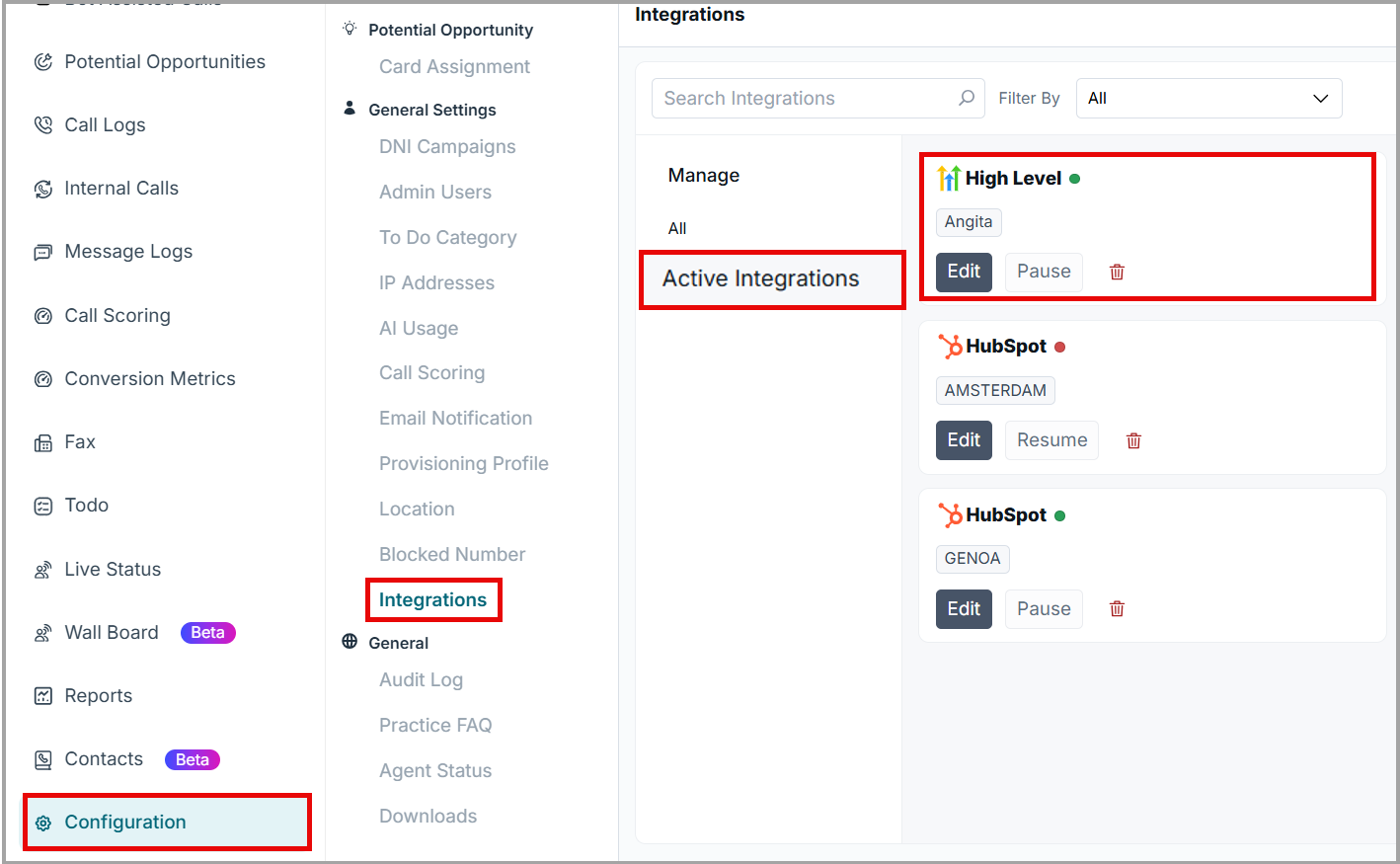
Navigate to Configuration > General Settings >Integrations.
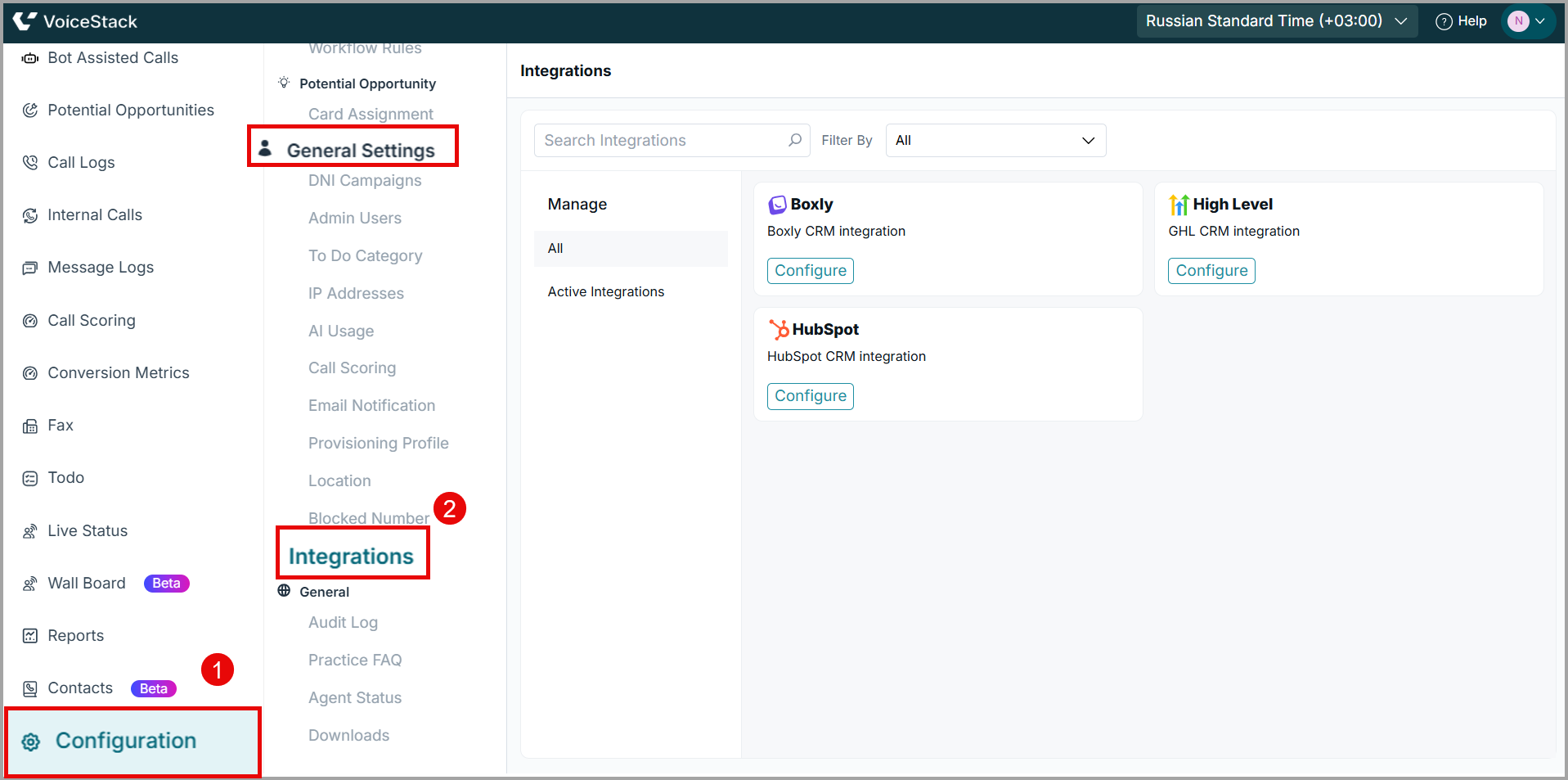
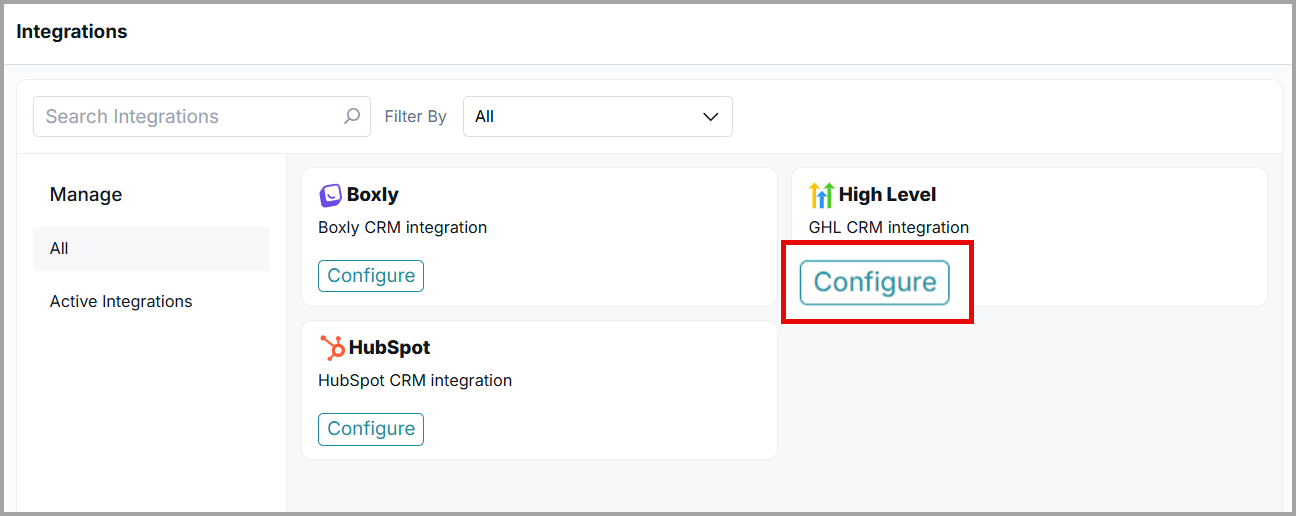
3. Locate the Go High Level (GHL) integration card and click Configure.
Generating the API Key
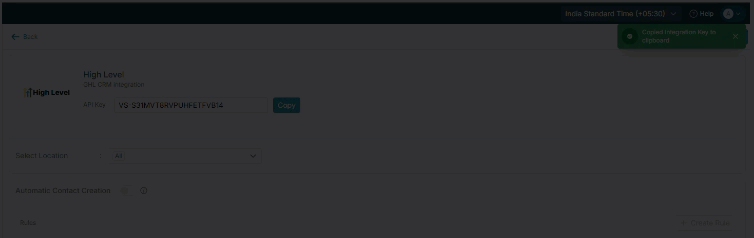
- Select the locations using the specific GHL sub account.
- Within the configuration screen, click Generate API Key.
- Copy the generated key, this will be required during the installation process in GHL.
| ⚠️ Important: This API key uniquely identifies your integration instance and must remain confidential. |
 |
Installing VoiceStack App in Go High Level
- Log in to your GHL Agency Account (ensure you have agency-level access).
- Open the region-specific private marketplace installation URL provided by the VoiceStack team.
- A permissions screen will appear, detailing the access requested by the VoiceStack app.
- Review the permissions and click Next to continue.
- On the Select Account screen, select only the Agency account.
| Note : Do not select any sub-accounts or the Install under all locations in <Agency Name>option. |
| ⚠️Warning: Selecting a sub-account at this stage will cause authentication failure when entering the API key later. |
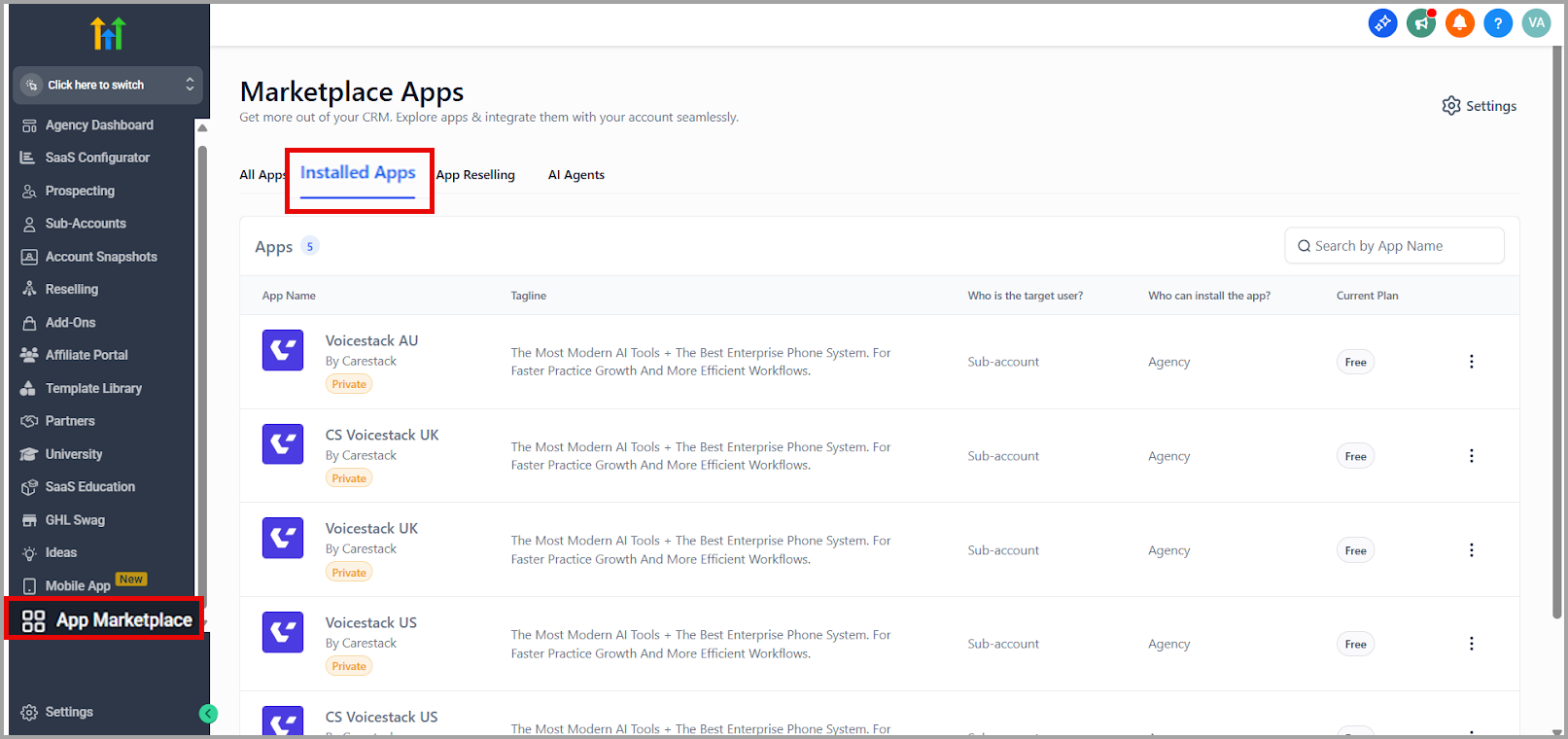
- After completing agency-level authentication, navigate to App Marketplace and select Installed Apps.
- You will see VoiceStack listed under your installed applications.
Installing VoiceStack for Sub-Accounts
- From the Installed Apps page, click on the VoiceStack application.
Use the Install to More Sub-Accounts option to deploy the app across multiple sub-accounts at once.
Connecting Sub-Accounts with VoiceStack
1. Log in to the desired sub-account in GHL.
| Note: Each sub-account must be individually linked with its corresponding VoiceStack API key. |
2. Navigate to App Marketplace and select Installed Apps.
3. Select the VoiceStack app and click Connect CS VoiceStack.
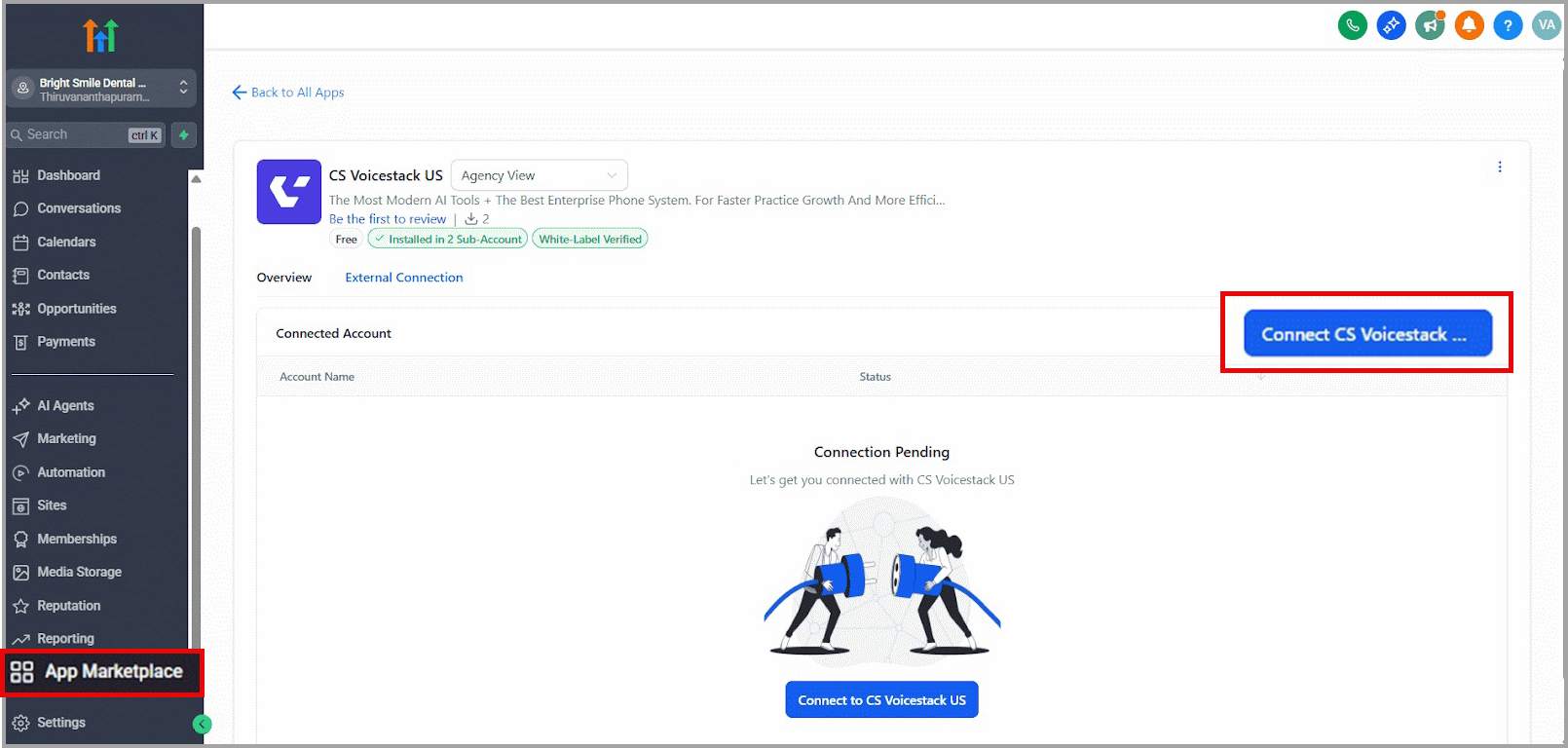
4. In the pop-up window, enter the previously generated VoiceStack API key and click Submit.
Once submitted, the connection will be established successfully.
Confirming Integration
After completing the setup:
- Return to the VoiceStack Integrations page.
- Navigate to Active Integrations, verify that the Active Integration card is visible.
The presence of this card confirms that the connection between Go High Level and VoiceStack is live and functioning successfully.
Use Cases
| Scenario | Action |
| Automatic Call Logging | All inbound and outbound calls are automatically logged under the corresponding contact in Go High Level, ensuring complete communication history without manual updates. |
| Lead Follow-Up Automation | Trigger workflows in Go High Level based on call activity (e.g., missed calls, completed calls) to automatically send SMS, emails, or assign follow-up tasks. |
| Missed Call Tracking & Response | Automatically create opportunities or tasks in Go High Level when a call is missed, helping your team respond quickly and reduce lead loss. |
| Centralized Communication History | View all voice interactions alongside marketing and CRM activities within Go High Level for better context and decision-making. |
| Performance Monitoring | Track call activity and outcomes within your CRM to measure team responsiveness and campaign effectiveness. |
Benefits
- Streamlined Workflow
Enable a seamless flow of data and actions between your CRM/marketing automation platform (GHL) and your communication system (VoiceStack). - Data Centralization
Maintain a single and comprehensive view of each lead or client, including all voice-related interactions directly within Go High Level. - Increased Efficiency
Reduce manual data entry and ensure that actions performed in one system are instantly reflected in the other.
Best Practices
- Confidentiality of API Key
Your API key uniquely identifies your integration instance and must remain confidential. Do not share it publicly or with unauthorized users. - Initial Agency-Level Installation
When installing the VoiceStack app in Go High Level, select only the Agency account.
Selecting a sub-account at this stage will result in authentication failure when entering the API key later.
Support
Mail us at support@voicestack.com or call 407-833-6436.
Was this article helpful?
That’s Great!
Thank you for your feedback
Sorry! We couldn't be helpful
Thank you for your feedback
Feedback sent
We appreciate your effort and will try to fix the article