TABLE OF CONTENTS
- Accessing the Feature
- Filters & Controls
- Metrics Displayed in the Wallboard
- Auto-Refresh
- Use Cases
- Highlights
- Benefits
- Best Practices
- FAQs / Troubleshooting
- Edge Cases
- Support / Contact
Admin App
Accessing the Feature
- Navigate to Wall Board.
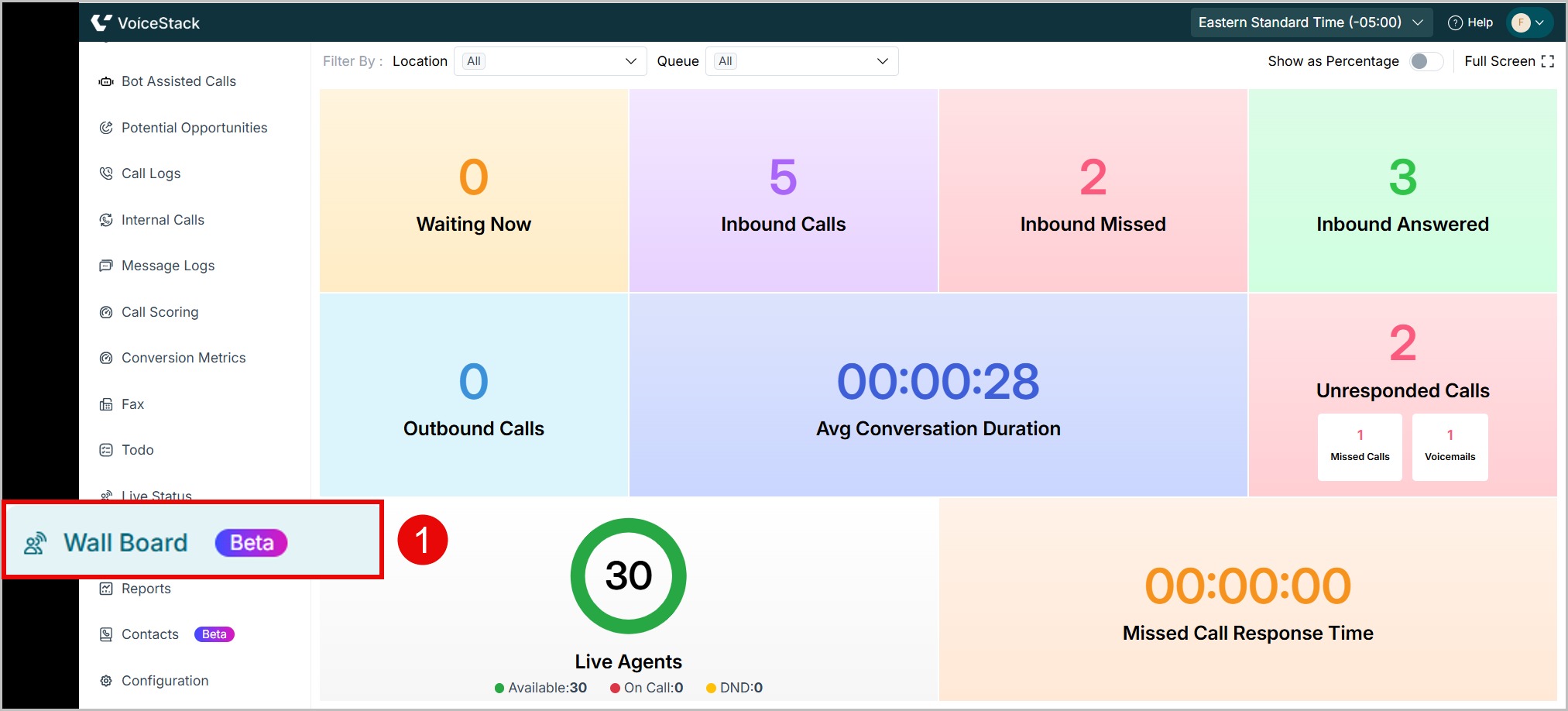
Filters & Controls
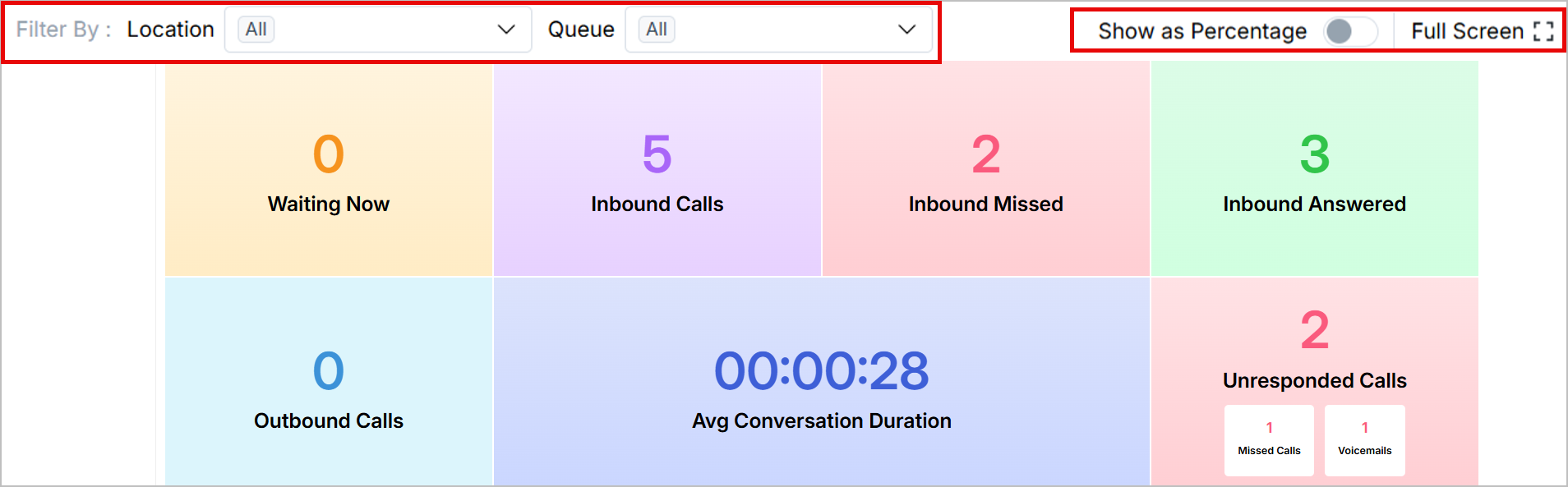
Filter By Location: Use the dropdown to select All locations or a specific location to view corresponding data.
Filter by Call Queue: Choose All or a specific call queue to narrow down the displayed data.
Show as Percentage: Toggle this option to switch between viewing metrics as percentage values or absolute values.
Full Screen: It is designed for display on a dedicated computer connected to a TV for team-wide visibility. In full screen mode, the top menu bar is hidden by default and becomes visible only when you move the cursor to the top of the screen.
- Dark Mode: Once entered into Full Screen Mode, we can enable the Dark Mode Toggle. If a user enables dark mode and then exits full-screen, the setting will reset. Dark mode will need to be re-enabled when returning to full-screen.
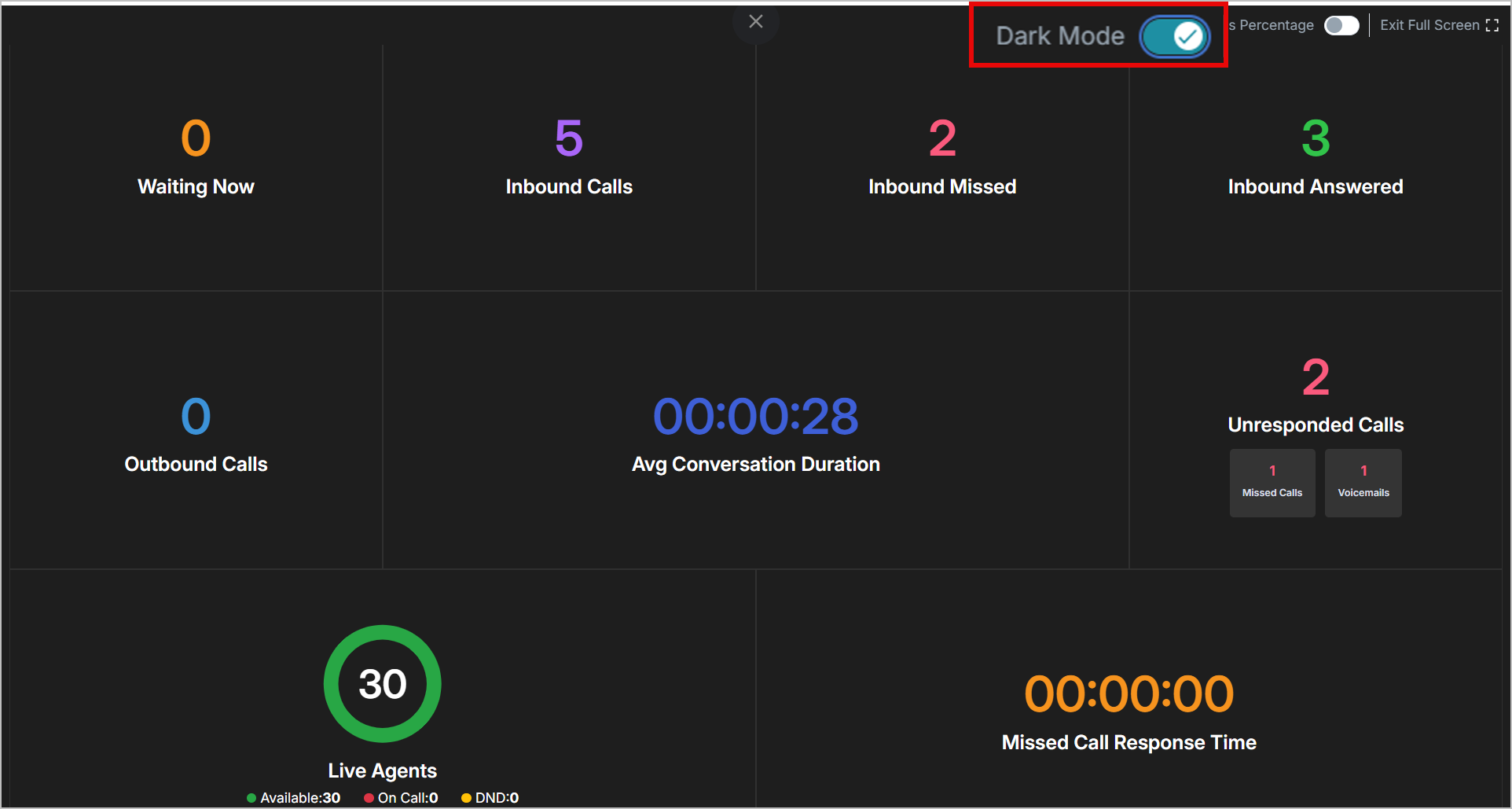
Metrics Displayed in the Wallboard
| TERM | DESCRIPTION |
| Waiting Now | Number of callers currently in the queue who have not yet been connected to an agent. |
| Inbound Calls | Total number of incoming calls received |
| Inbound Missed | Number of inbound calls that were not answered. |
| Inbound Answered | Number of inbound calls that were successfully answered |
| Outbound Calls | Total number of outbound calls placed by agents |
| Avg. Conversation Duration | Average time spent per call between the agent and the caller |
| Unresponded Calls | Total number of inbound calls that were not responded to- includes both missed calls and voicemail. |
| Live Agents | Total agents logged in-Includes those who are Available, On Call, or in DND Status |
| Missed Call Response Time | Average time taken to respond to missed calls or voicemails. |
Auto-Refresh
The Wallboard automatically refreshes at regular intervals to ensure the displayed data remains up to date.
It uses a hybrid refresh mechanism based on the type of metric.
- Real-Time Updates:
These values refresh instantly without manual intervention.- Waiting Now
- Live Agents
- Periodic Updates:
Other cumulative metrics — such as inbound/outbound calls, answered calls, or average duration — are updated automatically every 60 seconds.
Use Cases
Scenario: Handling high call volumes efficiently during peak hours.
Application: Supervisors use the Wallboard to monitor queues, track live agent availability, and reassign calls to balance workload.
Highlights
- The values in the wallboard resets at 12 am midnight based on the Time zone
Benefits
- Real-time visibility into call activity
- Improved response times
- Streamlined team coordination
Best Practices
- Enable Full Screen mode during meetings or when displaying dashboards in common areas.
- Keep Dark Mode enabled for better visibility in brightly lit environments.
FAQs / Troubleshooting
Q: The Wallboard data seems outdated.
A. Check your internet connection or refresh the browser window. Data also auto-refreshes every 60 seconds for cumulative metrics.
Q: Dark Mode turns off automatically.
A: This is expected behavior — Dark Mode must be re-enabled after exiting Full Screen.
Edge Cases
Wallboard metrics may not update in real time if network connectivity is poor.
Support / Contact
Need further help? Mail us at support@voicestack.com or call 407-833-6436.
Was this article helpful?
That’s Great!
Thank you for your feedback
Sorry! We couldn't be helpful
Thank you for your feedback
Feedback sent
We appreciate your effort and will try to fix the article