TABLE OF CONTENTS
- Accessing the Feature
- What You Can Do in Message Logs
- Message Log Overview
- Message Log Table – Column Definitions
- Message Direction Explained
- Message Status Definitions
- Contact Type Indicators
- Filters & Search
- Available Filters
- Date Range Selection
- Exporting Message Logs
- Column Customization
- Use Cases
- Support
Accessing the Feature
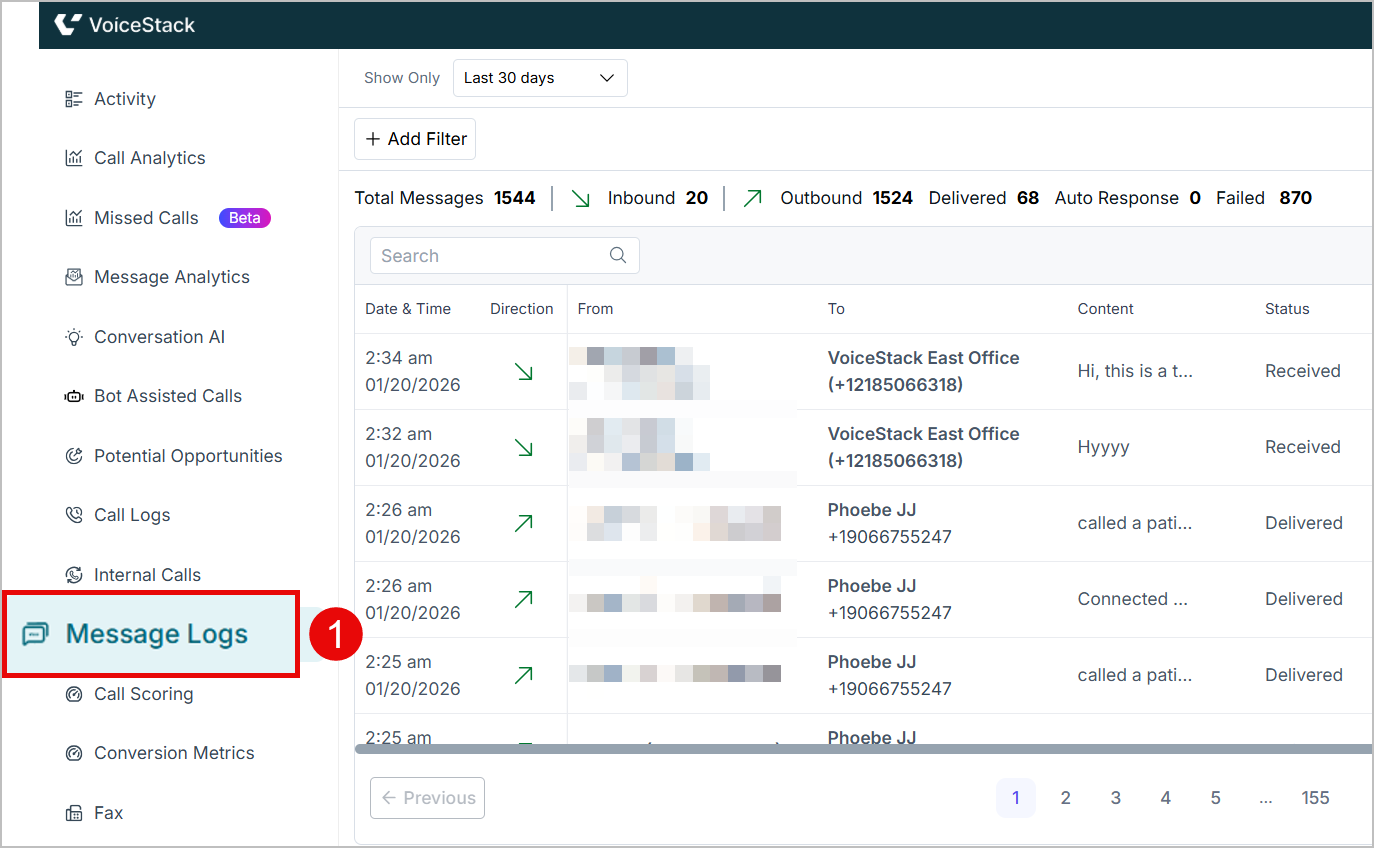
From the Admin App, select the Message Logs section.
What You Can Do in Message Logs
- View all inbound and outbound SMS messages
- Track delivery status (Delivered, Failed, Auto Response)
- Filter messages by direction, agent, location, status, and type
- Identify new vs existing contacts
- Export message data for reporting or audits
Message Log Overview
At the top of the Message Logs page, you’ll see a high-level summary of SMS activity for the selected time range.
The Metrics displayed:
| Metric | Description |
|---|---|
| Total Messages | Count of total SMS sent and received |
| Inbound |  Messages received from patients Messages received from patients |
| Outbound |  Messages sent by agents or the system Messages sent by agents or the system |
| Delivered | Successfully delivered messages |
| Auto Response | Automated replies triggered by the system |
| Failed | Messages that were not delivered |

These metrics update dynamically based on the selected date range and applied filters.
Message Log Table – Column Definitions
Each row in the table represents an individual message and the message log table displays the details of each.
| Column | Description |
|---|---|
| Date & Time | Timestamp when the message was sent or received |
| Direction | Indicates the message flow: ↗ Outbound (messages sent) ↘ Inbound (messages received from patients) |
| From | Sender number or agent/system name |
| To | Recipient phone number |
| Content | Message text (truncated for preview) |
| Status | Delivery outcome (Delivered / Failed) |
| Location | Practice location associated with the message |
| Contact Type | NEW or EXISTING contact |
| Message Category | System-generated or Manual |
| Message Type | Communication channel (SMS/MMS) |

Message Direction Explained
- Inbound: Messages received from patients
- Outbound: Messages sent by:
- Agents
- System automations
- Auto-response workflows
The Directional icons make it easy to visually scan message flow.
Message Status Definitions
- Delivered – Message was successfully sent and received
- Failed – Message delivery failed due to carrier issues, invalid numbers, or system errors
- Auto Response – Message sent automatically by the system (e.g., acknowledgements)
Contact Type Indicators
- NEW – First interaction with this phone number
- EXISTING – Contact already exists in the system
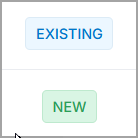
These indicators help teams quickly identify new patient interactions.
Filters & Search
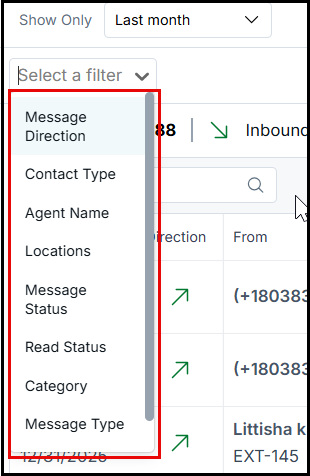
Select a filter from the dropdown to refine the message list.
Available Filters
- Message Direction- Indicates whether the message is Inbound or Outbound
- Contact Type -Identifies the contact as New or Existing
- Agent Name- Filters messages based on the assigned agent.
- Locations- Filters messages by the associated practice location.
- Message Status-Shows the delivery status of the message (Delivered, Failed, Auto Response).
- Read Status- Filters messages based on whether they have been read or unread.
- Category (System / Manual)-Classifies messages as System-generated or Manual.
- Message Type- Filters messages based on the type of message sent or received.

You can also use the search bar to find messages by phone number or content.
| Tip: Filters can be combined to narrow results for audits |
Date Range Selection
Use the Show Only dropdown (e.g., Last Month) to limit message logs to a specific time period.
This is useful for Monthly reporting, campaign analysis and compliance reviews.

Exporting Message Logs
Click Export CSV to download the filtered message data.
Exports include:
- Full message details
- Status and timestamps
- Agent and location mapping

Column Customization
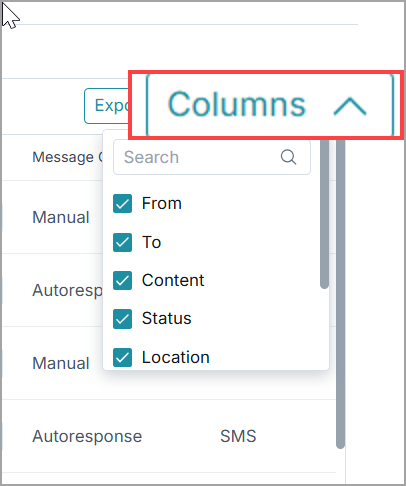
- Use the Columns option to show or hide table fields based on your needs.
- This allows admins to focus on Delivery outcomes, Agent activity and Contact engagement.
Use Cases
Message Logs are commonly used to:
Investigate why a patient did not receive an expected message
Verify whether automated responses were triggered correctly
Audit agent-sent messages for compliance or quality assurance
Track communication activity for specific locations or agents
Export historical message data for internal reporting or reviews
Support
Our support team is here to assist you with any questions you may have about VoiceStack.
Email: Reach out to us at support@voicestack.com for detailed queries or technical assistance.
Phone: Call us at 407-833-6436 to speak directly with a support representative.
We’re committed to ensuring a smooth experience and will respond as quickly as possible to help resolve your concerns.
Was this article helpful?
That’s Great!
Thank you for your feedback
Sorry! We couldn't be helpful
Thank you for your feedback
Feedback sent
We appreciate your effort and will try to fix the article