Module: Admin Application
The Audit Log acts as your system’s audit trail, giving you a clear, time-stamped snapshot of every change made by every user. From phone-tree updates to call-queue changes, you can instantly see:
- Who made the change
- What was changed
- Which module it affected
- When it happened
- Whether it succeeded
And when you need deeper insights, clicking View reveals deeper details such as IP address, user location, and the exact Old Value vs. New Value—making it easy to trace configuration updates with confidence.
Getting Started
- Accessing the Audit Log
- Columns in the Audit Log
- Using Filters
- Viewing Detailed Logs
- Why the Audit Log Matters
- Example Use Cases
- Tips for Admins
- Support
Accessing the Audit Log
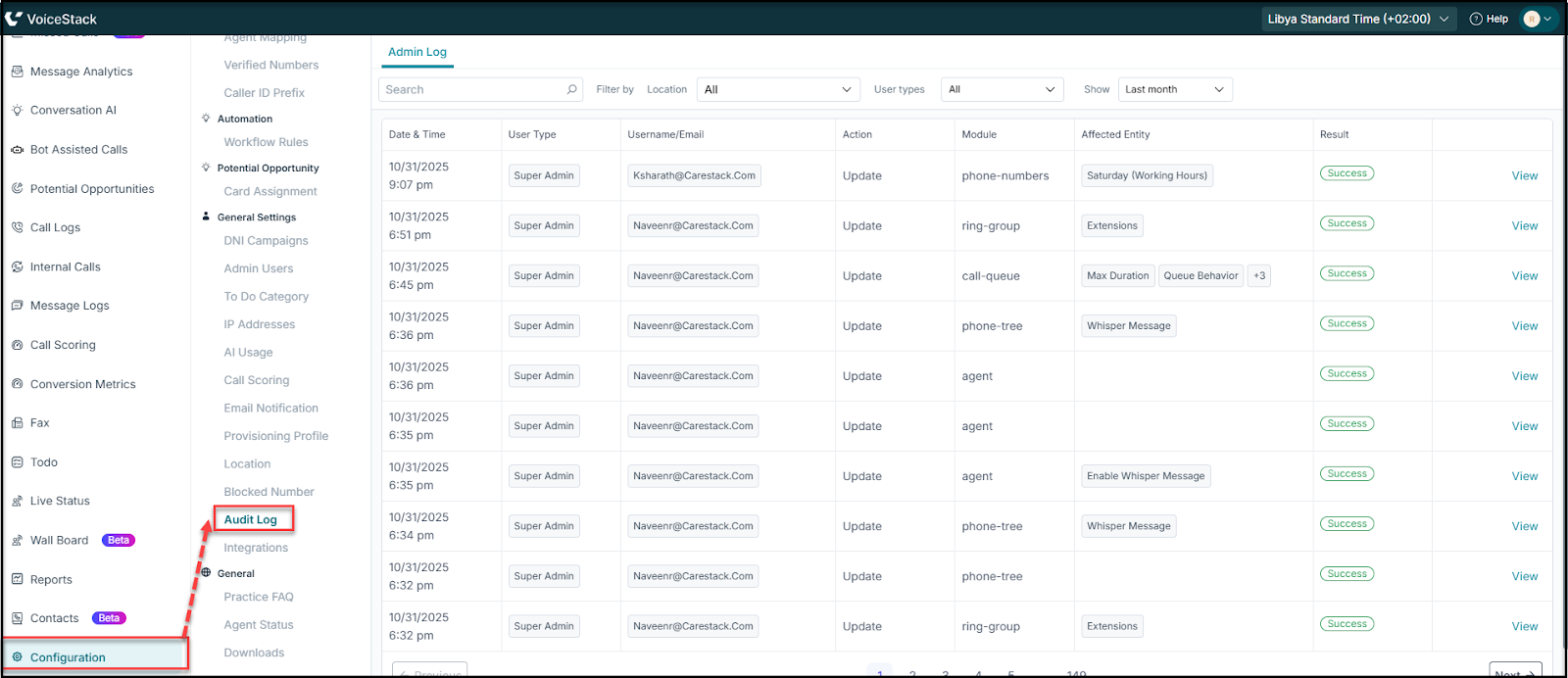
- Open the Admin App
- Navigate to Configuration > Audit Log.
- The main Audit Log table appears with filters at the top.
Columns in the Audit Log
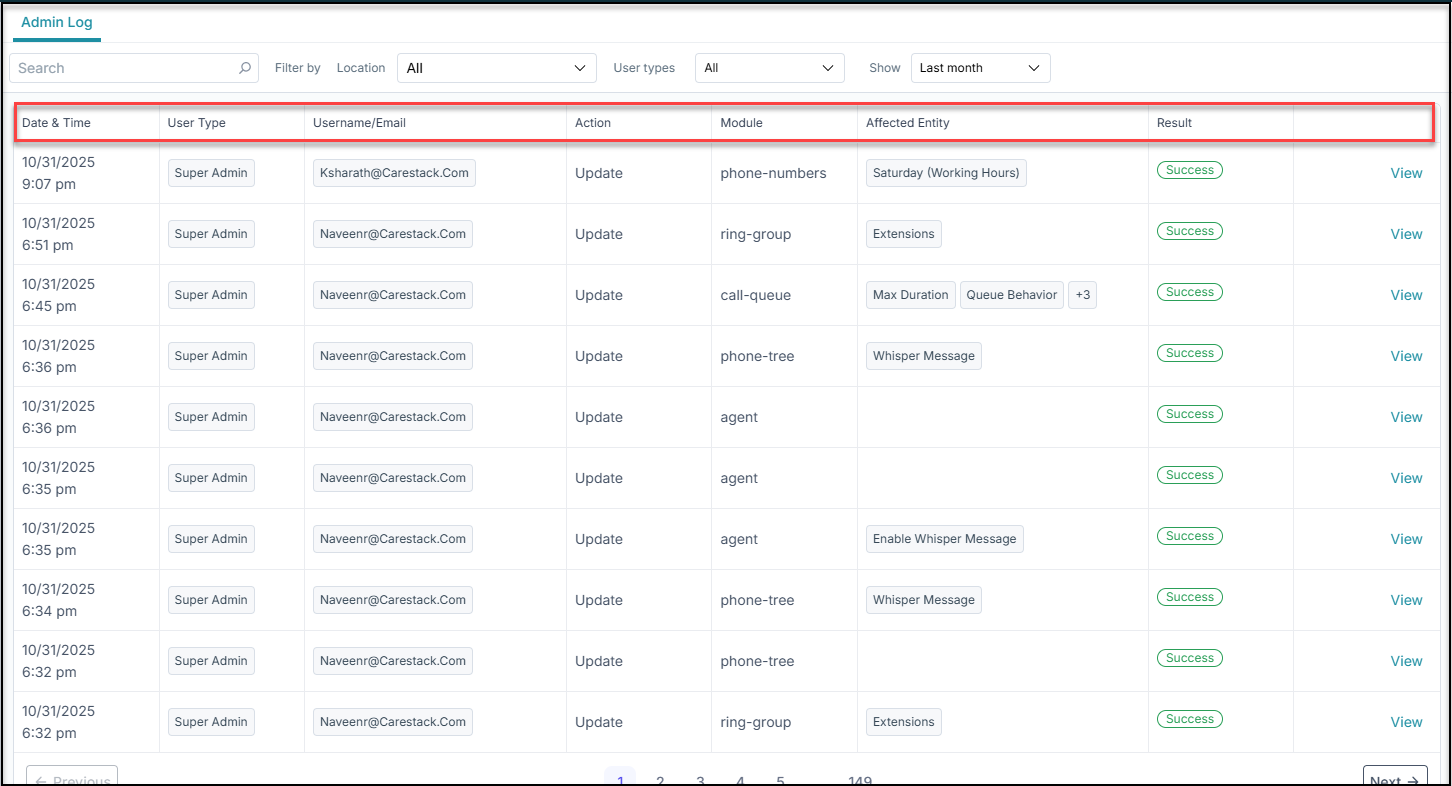
The log displays a list of actions performed within the system. Each entry includes:
| Field | Description |
|---|---|
| Date & Time | When the change happened |
| User Type | Super Admin / Admin |
| Username/Email | Who performed the action |
| Action | Type of change (e.g., Update) |
| Module | Which module was affected (phone-tree, call-queue, agent, etc.) |
| Affected Entity | Specific item updated (e.g., Whisper Message, Extensions) |
| Result | Success / Failed |
| View | Link to detailed info |
Using Filters
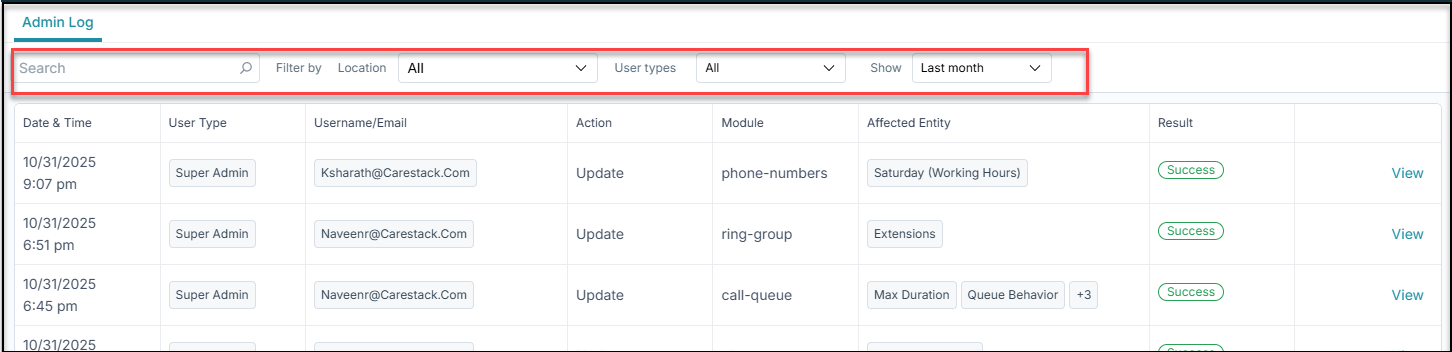
The Audit Log includes filters to help you quickly narrow down entries:
- Location – View actions within specific practice locations
- User Types – Filter by Admin or Super Admin
- Date Range – Last week, last month, or a custom period
These filters make it easy to audit changes for compliance reviews or issue investigations.
Viewing Detailed Logs
- Click View on any entry to open the Log Details popup.
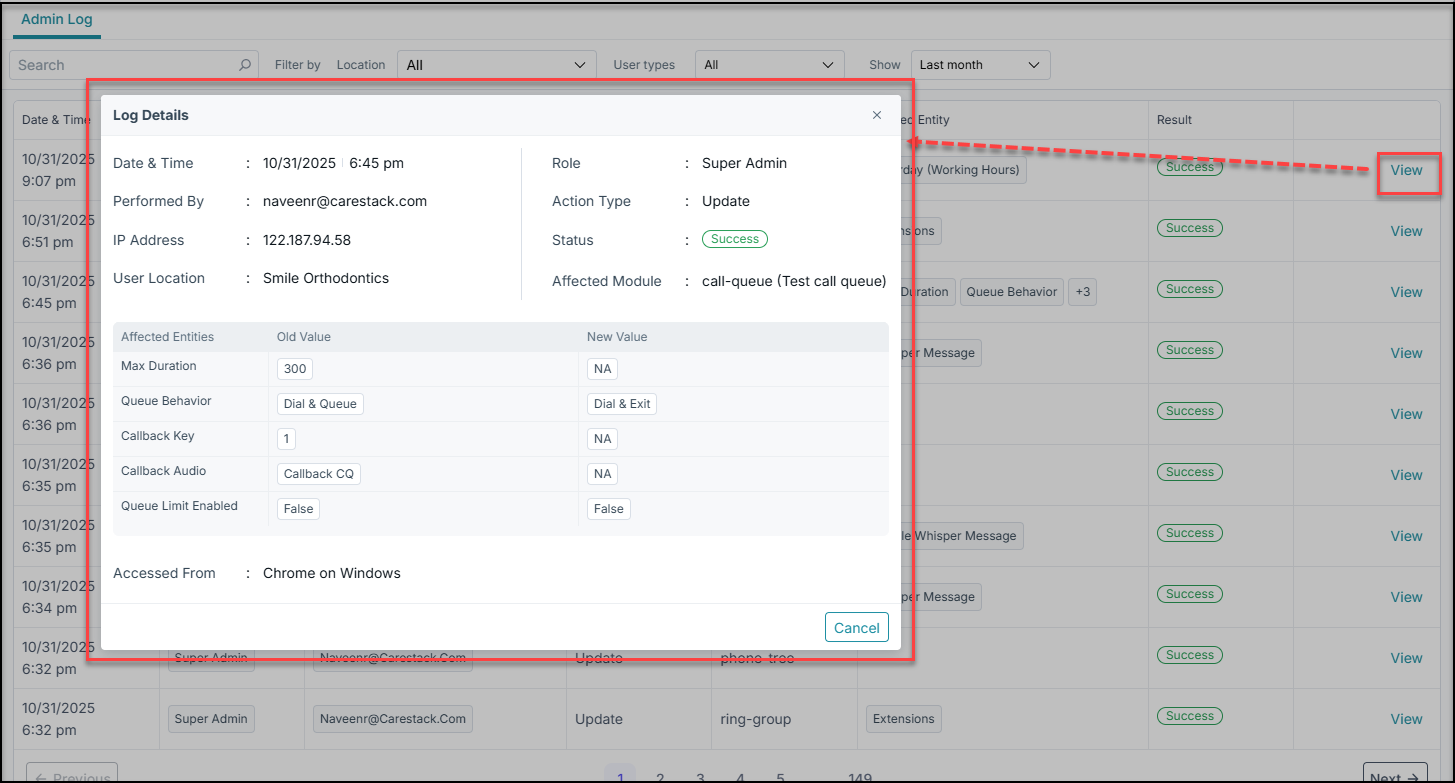
The detailed view includes:
1. User & Session Information
- Performed By – Email of the user
- Role – Admin or Super Admin
- IP Address – Helps identify the device/network used
- User Location – Practice or location tied to the action
- Accessed From – Browser and OS (e.g., Chrome on Windows)
2. Change Information
- Action Type – Update, Delete, Create
- Status – Success or Failed
- Affected Module – phone-tree, call-queue, ring-group, etc.
- Affected Entities – Specific configuration elements
3. Old Value vs New Value
Both information is displayed side-by-side:
| Old Value | New Value |
| Welcome-FD.Mp3 | Callback CQ |
This helps identify exactly what changed—critical for debugging and compliance.
Why the Audit Log Matters
- Track unauthorized changes
- Investigate configuration issues
- Verify who updated settings
- Maintain security and compliance
- Understand operational changes across teams
Example Use Cases
- A phone-tree stops working → check if someone changed a whisper message.
- A Call Queue behaves differently → verify if settings were modified.
- Need to review all updates for a location → apply filters and export (if enabled).
- Security audit → validate IP addresses and user actions.
Tips for Admins
- Review the audit log weekly for high-usage practices.
- Use the filter by location feature for multi-practice setups.
- Pay attention to unexpected IP addresses.
- When a user reports “something changed”, the Audit Log is your first stop.
Support
Need further help? Mail support@voicestack.com or call 407-833-6436.
Was this article helpful?
That’s Great!
Thank you for your feedback
Sorry! We couldn't be helpful
Thank you for your feedback
Feedback sent
We appreciate your effort and will try to fix the article