Components Required
- The Base Station
- Handheld Phone
- POE* (Power over Ethernet)
- Lan Cable
- Power adapter*
- Handheld device Mount
| Note: If a POE is available, then this will act as both LAN and Power adapter. In this documentation, the provisioning steps are explained considering the unavailability of a POE, and the presence of LAN Cable and a Power adapter. |
First, we need to factory reset the base station:
1. Unplug the Power cable and the LAN cable (if connected) from the Base station.
2. Hold the Paging key (the button with the Wi-Fi symbol on the base station) for 10-15 seconds.
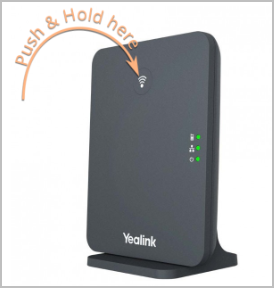
3. Let go of the Paging key, and insert the Power Adapter.
- Wait until the Power LED Light next to the Power symbol is stable.
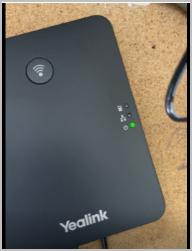
4. Now, press the Paging Key again, until you see the Network LED light (next to the LAN symbol on the Base station) blink.
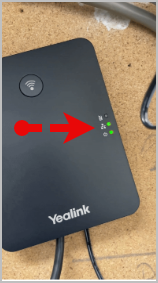
5. Once the 2nd LED, the Network LED Light starts to blink, insert the LAN Cable.
6. The 2nd LED - Network LED light should be stable now, indicating it is connected to LAN, and long press the Paging key once again, until the 1st LED light starts to blink.
Now, to register the handheld device:
7. Once the 1st LED light blinks, take hold of the handheld device, and navigate to the following path on the handheld device.
8. Press the left most key in the handheld device.
- The device now begins to search for the Base station (which is currently in the Pairing mode), and would show up as ‘Handeset Subscribed’ once it pairs/registers.
- The mac Address of the Base station under the OK → Settings → Registration, as soon as it is registered
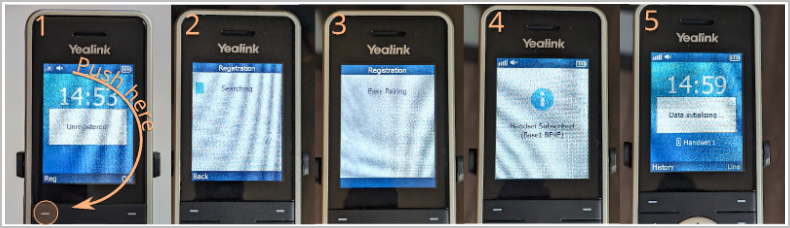
Now you know how to perform cordless provisioning of Yealink phones.
Was this article helpful?
That’s Great!
Thank you for your feedback
Sorry! We couldn't be helpful
Thank you for your feedback
Feedback sent
We appreciate your effort and will try to fix the article