1. After getting the Admin access to Splashtop, log in to Splashtop Business with your credentials.
2. You will view all the devices connected to your practice.
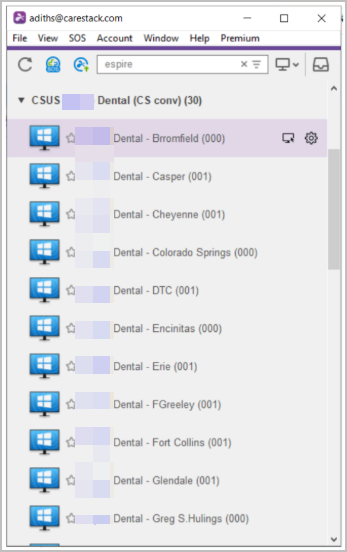
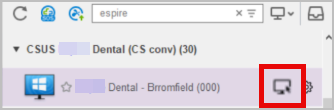
3. Click on the PC icon to connect to the system of each location.
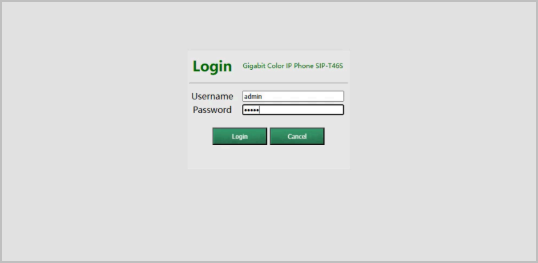
4. Enter the Username and Password in the PC from the Excel Sheet.
5. Open Chrome and enter the device IP details from the Device details page in Go Live Plan
Sheet.
For Yealink, Please follow below steps to provision the devices:
- Enter the Device Admin Portal by entering the device IP.
- Enter Username and Password as per the details mentioned in the Device Details.
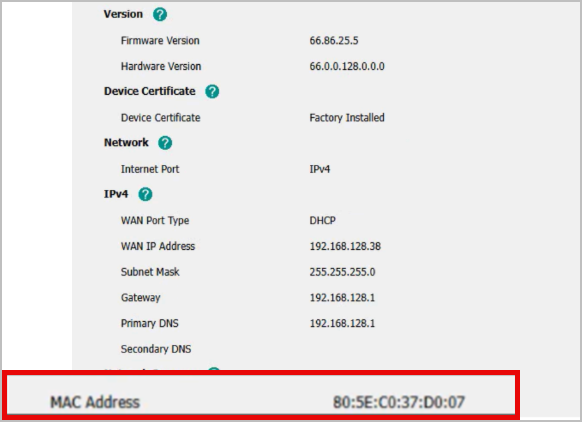
- Verify the MAC Address and confirm the device is mapped in the system.
- Go to Settings > Select Auto-Provision.
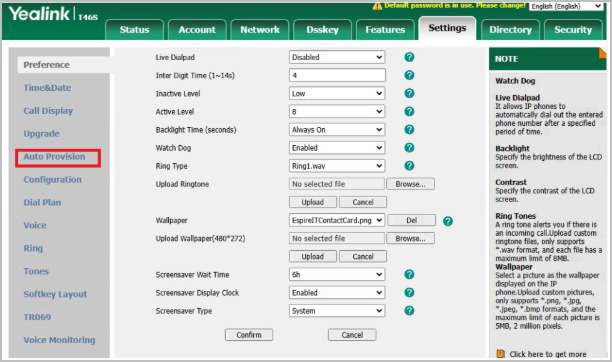
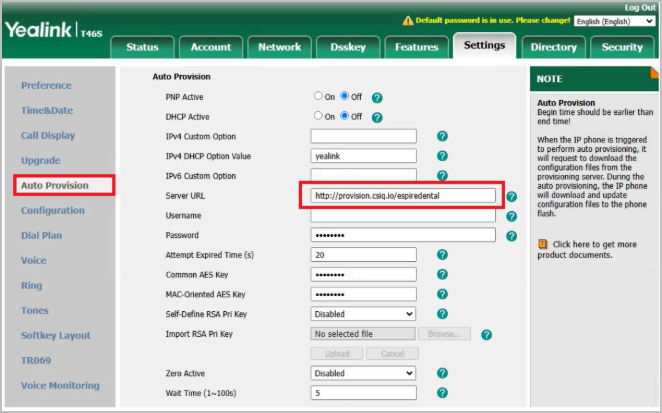
- In the Auto - provision panel, Enter Server URL section with “https://provision.csiq.io/espiredental”.
- Click ‘Confirm’ and Click ‘Auto Provision Now’.
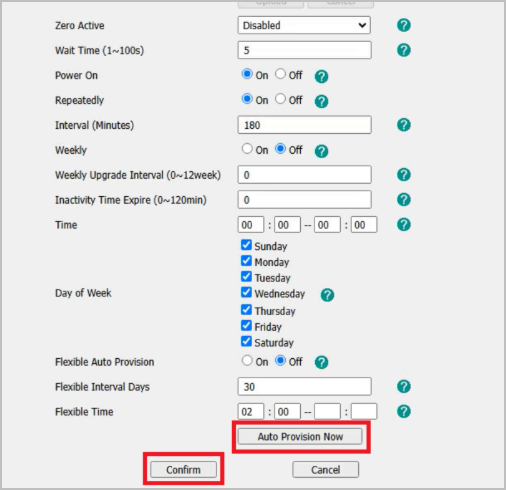
- Then the phone starts to reboot and update the configuration.
- Confirm the extension is registered before moving to the next device.
For Polycom, Please follow below steps to provision the devices:
- Enter Device Admin Portal by entering the device IP.
- Enter default Password “456 or 789” as per the details mentioned in the Device Details.
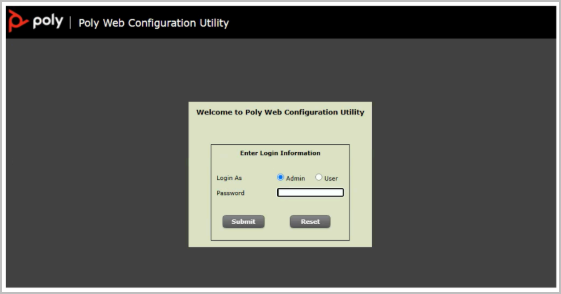
- Confirm the MAC Address and Phone Model is mapped in the system.
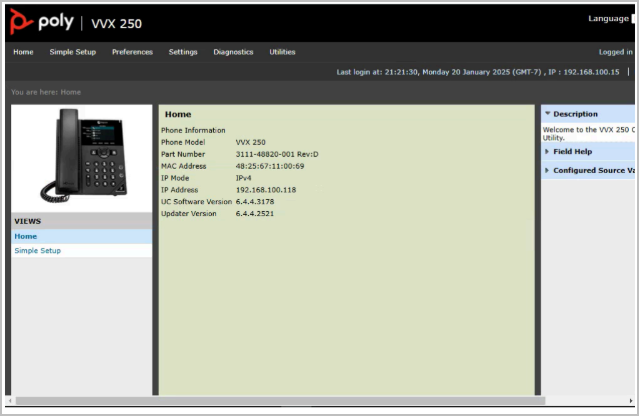
- Go to Settings and Select 'Provisioning Server' from the dropdown.
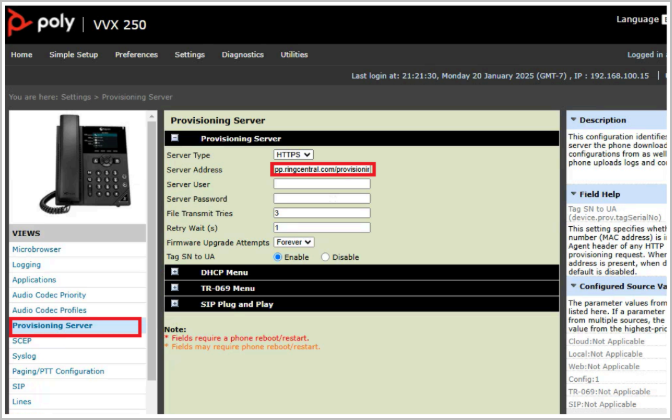
- Select Server Type as HTTPS and enter the Server Address section with “provision.csiq.io/espiredental”.
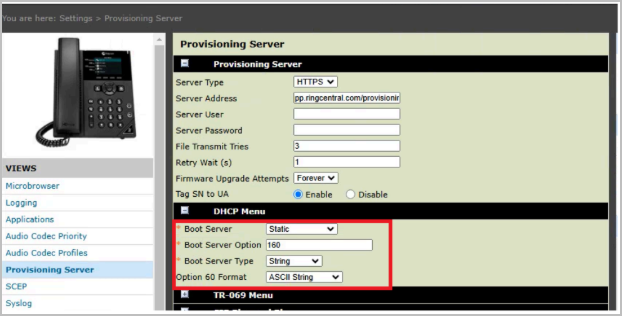
- Click on DHCP Menu and confirm the Boot Server is selected as Static.
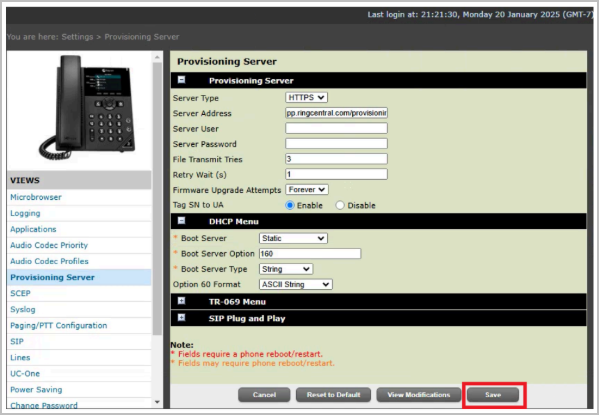
- Click Save.
- Then the phone starts to reboot and update the configuration.
- Confirm the extension is registered before moving to the next device.
Now you know how to manually provision Yealink and Polycom devices.
Was this article helpful?
That’s Great!
Thank you for your feedback
Sorry! We couldn't be helpful
Thank you for your feedback
Feedback sent
We appreciate your effort and will try to fix the article